


 Activate my SIM
 SIM Plan
 2-year warranty
 Contact
 My Account
User manual · November 2026
The user manual
The complete guide to both apps: the one the parent installs on their phone, and the one that runs on the child’s watch. Every screen, every setting, every limit.
- Parent app 1.1.6
- Watch app 1.7.8
- 33 languages
- Data hosted in the European Union
Download the manual as a PDF Same content, offline. 3.6 MB.
The screenshots in this manual are in French.
Part 1
Before you start
Two apps, two roles. The parent app lives on your phone. The watch app replaces the home screen on your child’s watch. They talk to each other through our server, never directly.
What you’ll need
- A Smart Watches watch, or a compatible watch from another brand.
- A SIM card in the watch, with an active data plan. Without data, the watch cannot send anything.
- A parent’s phone: iPhone (iOS 16.4 or newer) or Android 8 or newer.
- The watch's IMEI number, made up of 15 digits: on the box label, under the barcode — which the app can also scan — and in the watch settings, under “About”. On Ultra, the watch app displays it on the “Pair” screen.
Install the parent app
On your phone, not on the watch
On iPhone
Open the web app
In Safari, go to gw.smart-watches.io. The home screen appears with the logo and the Create my account button.
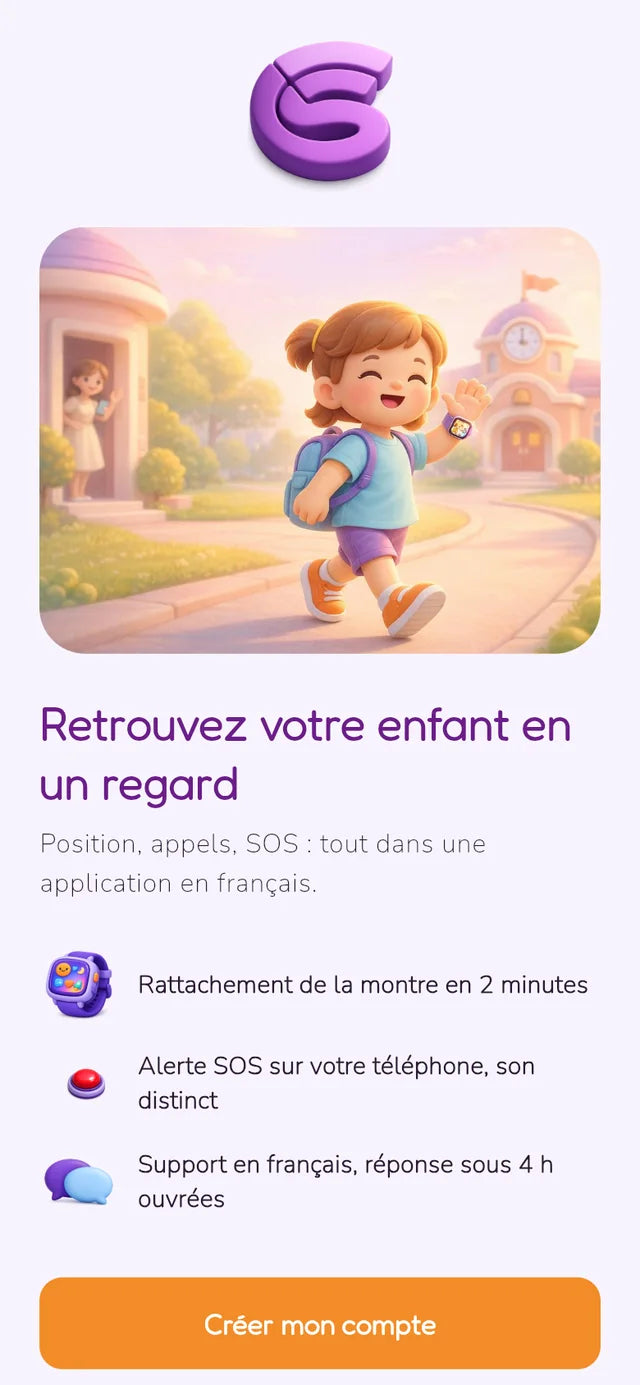
The parent app home screen. Add it to the Home Screen
Tap Safari’s Share button, then Add to Home Screen. A Smart Watches icon appears among your apps.
This step is not optional: Apple only allows notifications for a web app installed from the Home Screen. In a simple Safari tab, the SOS will never sound.
Open from the icon
Close Safari. From now on, open the app using its icon, otherwise the next steps will not be able to register your phone.
On Android
Install the parents.apk file from gw.smart-watches.io/parents.apk. Android will ask you to allow apps to be installed from this source: accept. The Google Play app is coming soon.
Part 2
Parent app
Twenty screens, in the order you meet them. Each feature appears only if it has been checked on the watch model you have linked: if a watch cannot do something, it does not show a greyed-out button — it shows nothing.
Account and family
First launch
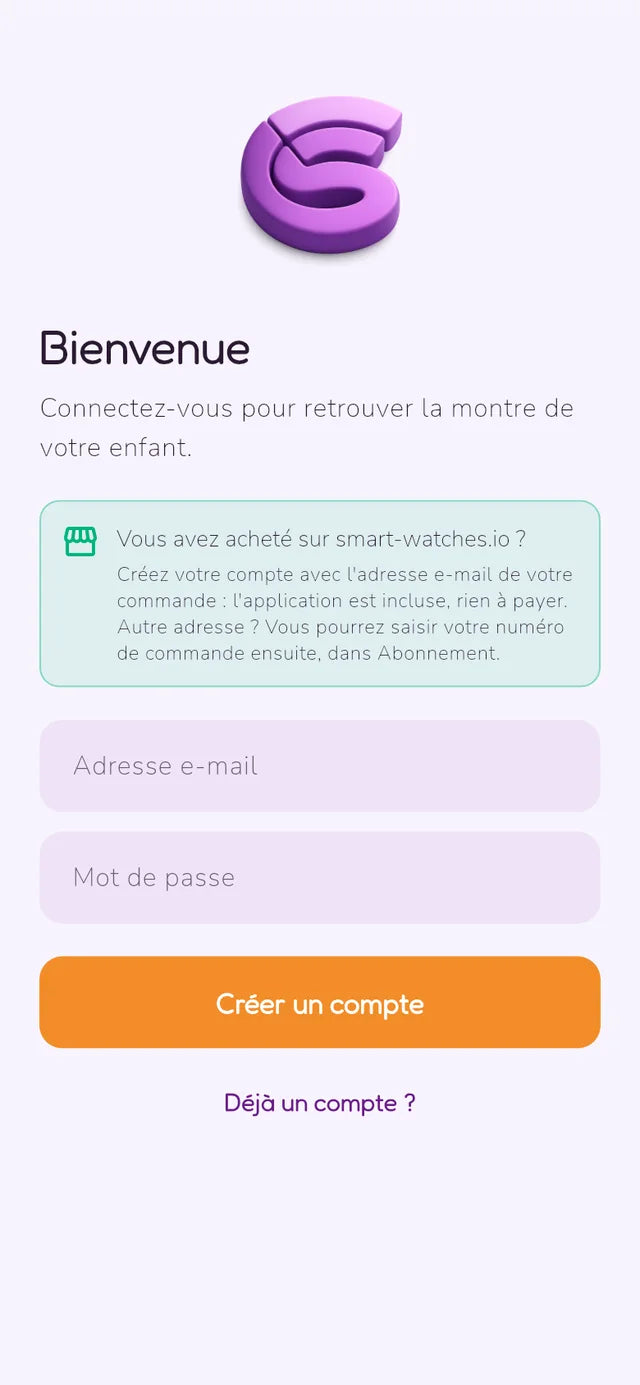
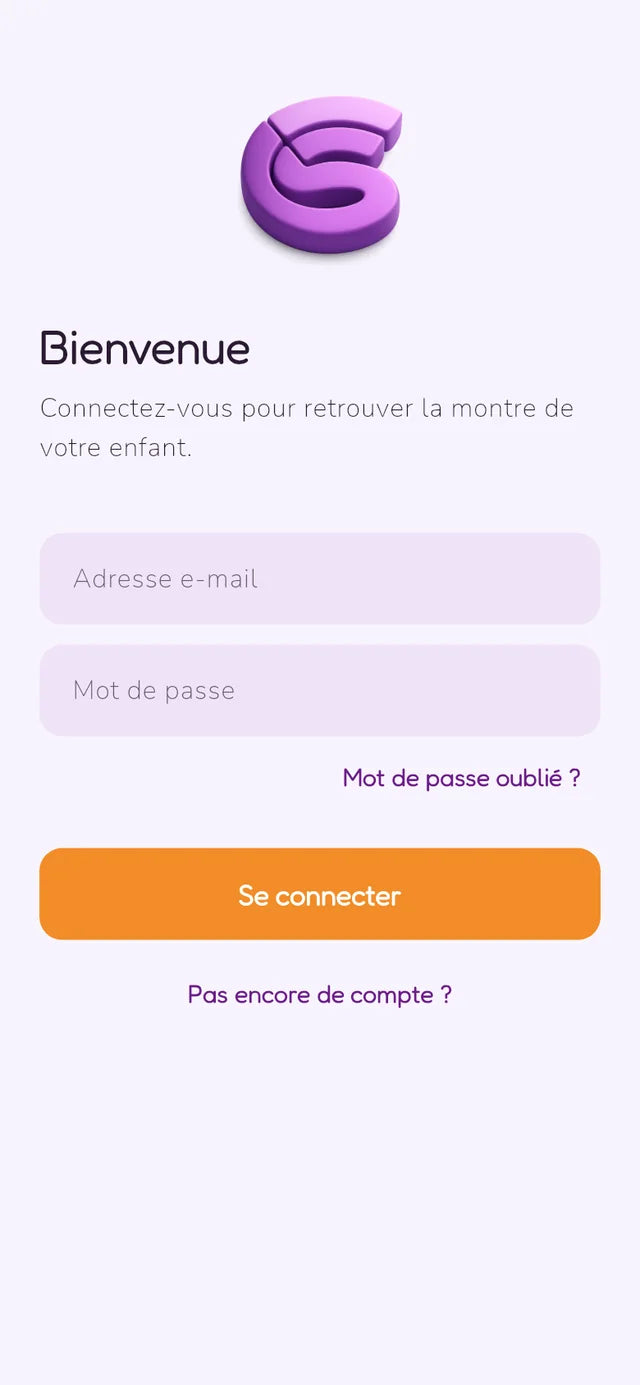
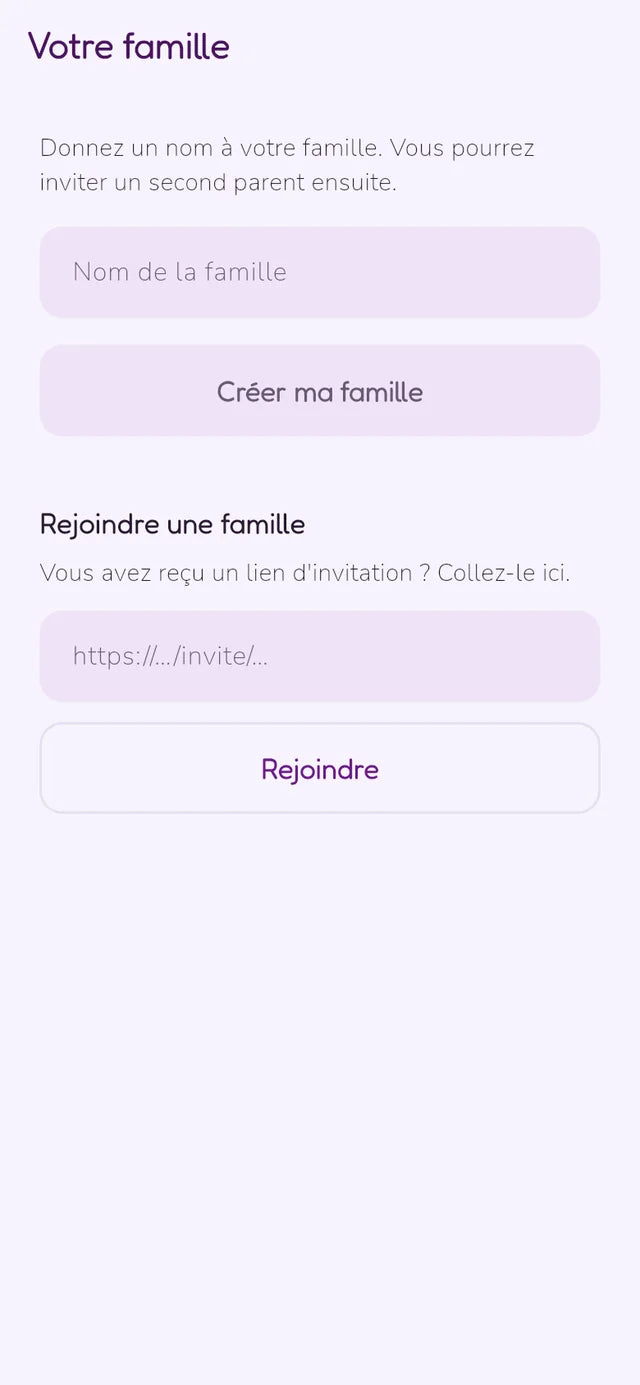
If you bought your watch on smart-watches.io
Create your account with the e-mail address used for your order. That is all you need to do: the app is then included, with nothing to pay, access is activated as soon as you confirm your e-mail, and your watches are then linked without any code.
If you would prefer to use another e-mail address, create the account as usual, then tap Link my order — from the linking screen, or in Subscription with I bought on smart-watches.io: the order e-mail and order number are enough to activate the included access, and linking then works without a code.

Confirm your address
An e-mail is sent immediately after registration. Tap the link inside it. Without this confirmation, the session remains blocked. If the e-mail does not arrive, check your junk folder, then use Resend e-mail on the sign-in screen.
Create the family, invite the second parent
Give your family a name. You become the account owner. To add the other parent, go to Settings, then Invite a parent: a link valid for 7 days is copied, which you can send however you prefer. The person who opens it joins the family with the parent role and sees the same watches as you.
Notifications
Banner on My watches and Alerts
This is the most important step in the manual. Until your phone is registered, no SOS alert will ring. The app tells you clearly, with the button that fixes the problem.
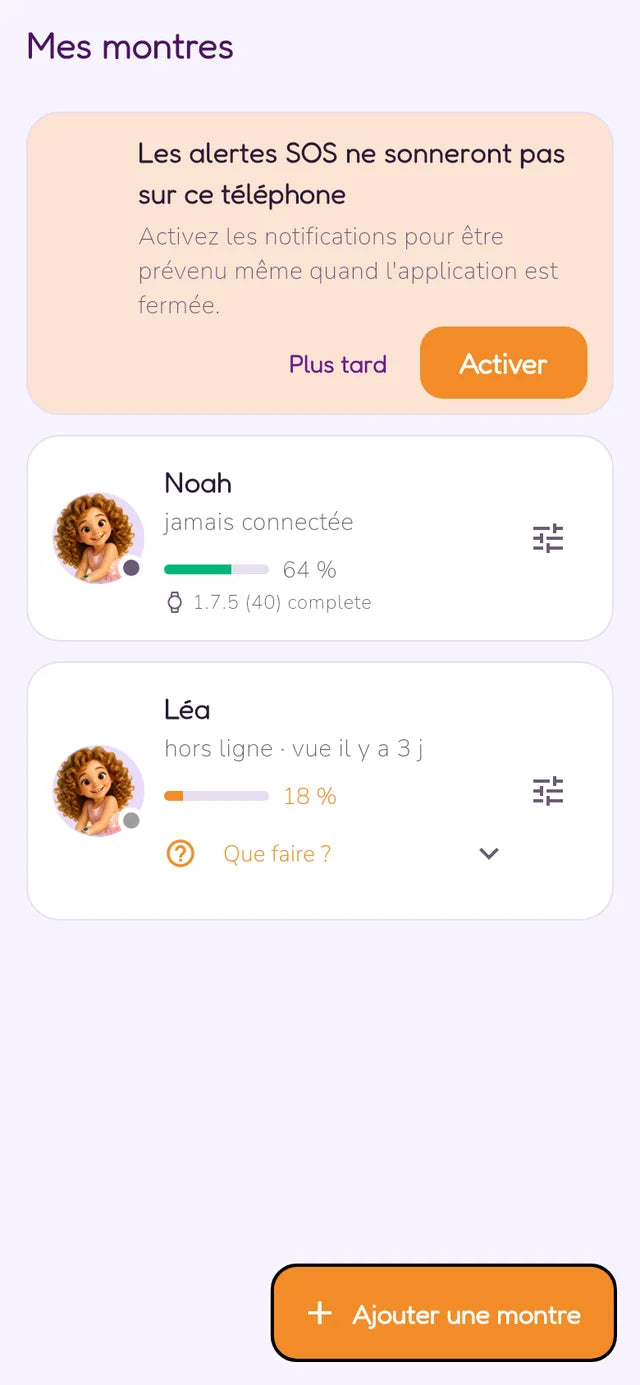

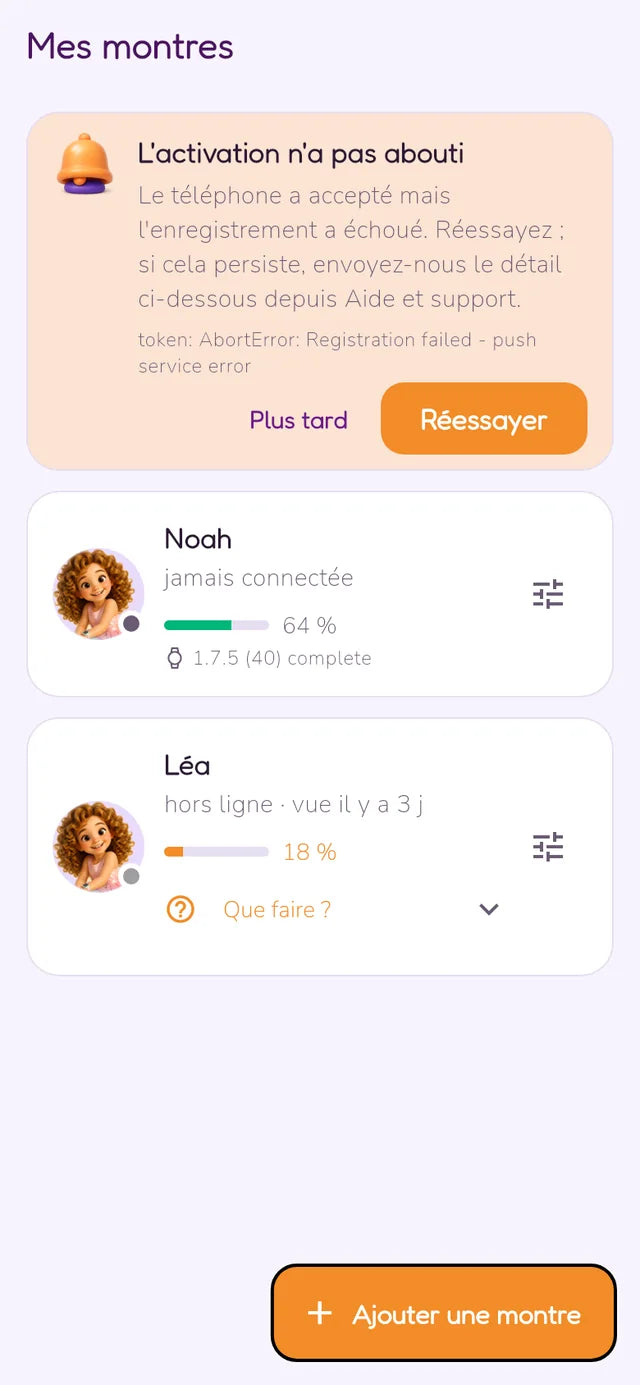
Tap Activate
Your phone asks for permission. Accept it. The banner disappears and a message confirms that notifications are enabled.
If the banner says “blocked”
You had declined once before. On Android, the Open settings button takes you straight to the right screen. On iPhone, the path is shown: Settings, then Notifications, then Smart Watches, then Allow Notifications. Then return to the app.
If the banner says “failed”
Your phone accepted, but registration failed. The exact reason is shown under the message. Tap Try again. If the error persists, send us that text from Help and support.
Quiet hours
In Settings, then Quiet hours, set a time window during which ordinary alerts will not wake you. SOS and fall alerts always get through, whatever the time window. Any area marked “ring loudly” also gets through.
Link a watch
My watches, then Add a watch
Identify the watch
On Ultra, scan the QR code shown on the “Pair” screen in the watch app — if it asks for the IMEI, enter it on the watch first. On other models, enter the 15 digits of the IMEI, or scan the barcode on the box. The “QR Code” menu on other watches is not used for linking.
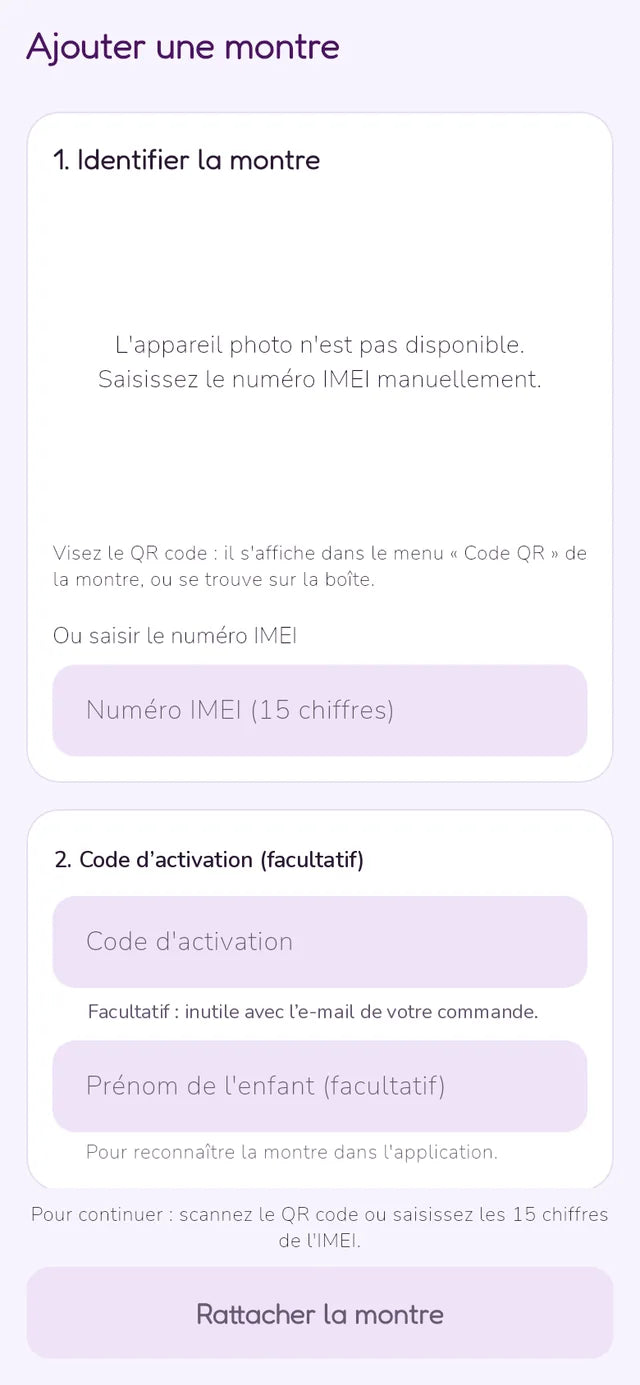
Two steps, with one line that always shows what’s missing. The activation code: only if needed
No code is needed if your account uses the e-mail address from your order: leave the field empty. Otherwise, get one in My account, under the “Application” tab, and enter it in the optional field. Add the child's first name: this is the name under which the watch will appear throughout the app.
Link
Tap Link the watch. Access follows your offer: with a plan, the app is included; with the watch only, a trial starts. In under three seconds, the app shows whether the server has already seen this watch. If it has never connected, a diagnostic screen guides you through: SIM card, network, restart.
My watches
First tab
Reading a map
Each watch shows its avatar, first name, the last time it contacted the server, its battery and its software version. A green dot means the watch is online, while a grey dot means the watch is offline.
A watch that has been silent for more than 30 minutes shows a What should I do? link, which opens the four checks in order, from the SIM card to contacting support.

Troubleshooting is in the card, not in a manual. Open a watch
Tap the card to go to the live map. Tap the settings icon on the right to open the watch’s full profile.
Remove a watch
Swipe the card to the left. A confirmation explains what will be removed: the watch leaves the family, along with all its history. You can link it again later, to this account or another one, in the same way.

The map
Second tab
Choose the child
The avatars at the top left switch from one watch to another. The one outlined in purple is the one shown.

The map background does not appear in this workshop screenshot; on your phone, the map is displayed correctly. Understand location quality
The dot under the map is honest about what is known:
- GPS position with its radius, in green: the watch can see the sky.
- Wi-Fi position, in blue: calculated from nearby networks, typically indoors.
- Cell tower position, in orange: the least precise, with a radius that can reach several hundred metres.
The radius shown is real uncertainty, not decoration. A position at ±300 m means “somewhere within this circle”.
Refresh
The round button at the bottom right of the panel asks the watch for a fresh position. Allow a few seconds: the watch has to receive the request, get a fix and send it back.
Change map style
The button at the top right cycles through Map, Satellite and, when available, a drawn map style that is easier for children to read.
Quick actions
Below the panel: Call the watch, Messages, Share the location with a temporary link, History, Zones and School.

SOS
Opens automatically
What happens when the child presses
The watch sends the alarm and calls at the same time the first SOS number in the contacts list. On the server side, the alert is created and the notification is sent in under five seconds.
When you open the app, the red screen appears automatically until someone has taken over the alert, whether or not you tapped the notification.
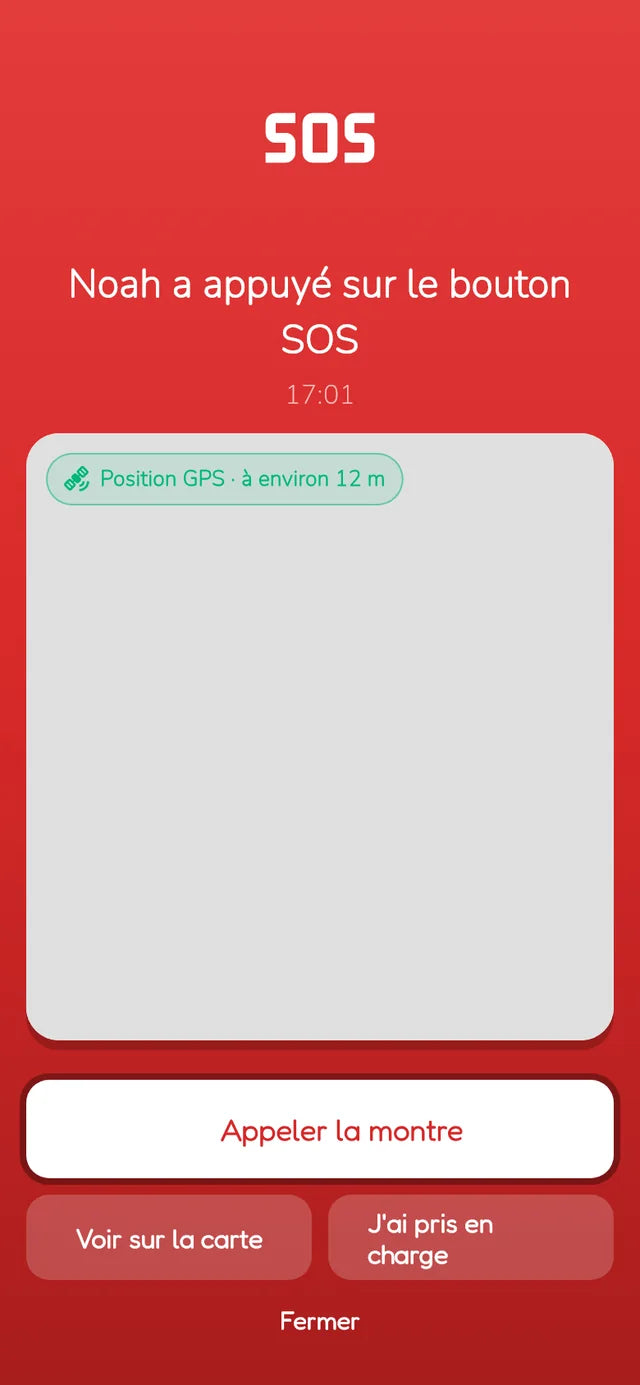
The SOS screen, with the current location. Repeated presses
A child who presses five times is experiencing one emergency, not five. Any further presses are added to the same alert: the counter goes up, the title becomes “pressed 3 times”, and you are alerted again at most every 20 seconds. One single card, never a flood of alerts.
Reminders
An SOS that no one takes over is sent again to the whole family 2, 4, 7 then 12 minutes after the last send, naming the second SOS number to call. These reminders ignore your quiet hours.
Take over
I’ve taken over stops the reminders and lets the other parent know that you are handling it, with the time. Older SOS alerts from the same watch are taken over with this one.
Close hides the screen without stopping the reminders: the emergency remains open.
Sound on iPhone
If the browser has blocked sound, an Enable sound button appears on the red screen. One tap and the alarm loops until someone takes over.
Alerts
Third tab
Filter
Three filters: All, Urgent (SOS and fall) and Zones. A parent looking for a specific event should not have to scroll through twenty battery alerts.
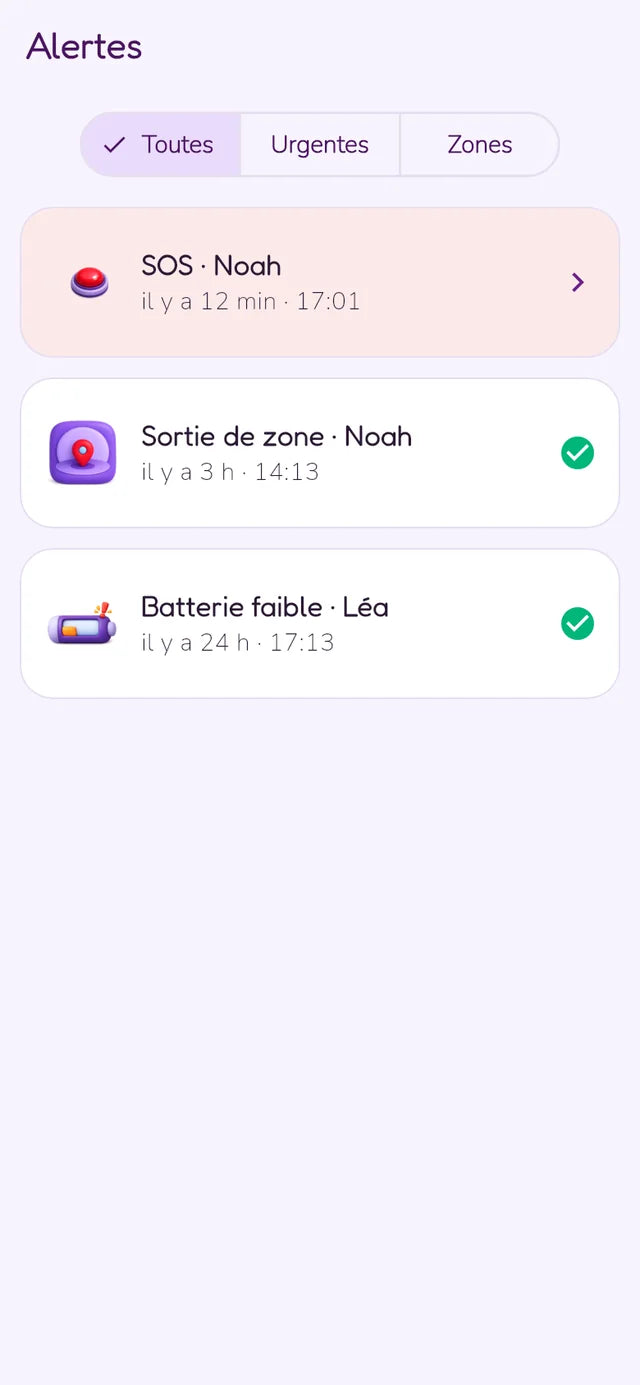
All alerts. Read a row
Each alert shows its type, the child’s name, how long ago it happened and the exact time. A repeated alert displays ×3 next to the title. A green tick means a parent has dealt with it.
Open
An SOS or a fall opens the red screen. Other alerts open the map at the place where the event happened.
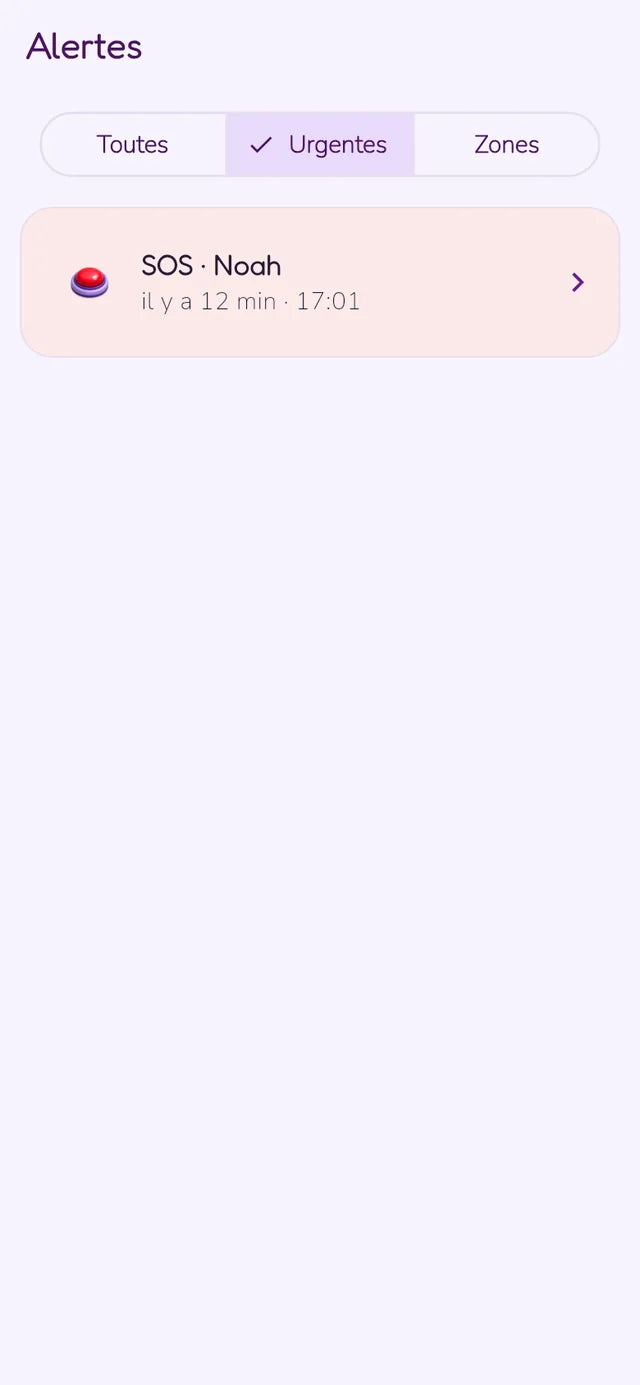
Urgent filter: SOS and falls only.
The full list of alerts, with what triggers each one, is in the reference sheet.
Safety zones
Watch profile, then Safety zones
Create an area
Add a zone, give it a name, place the centre on the map and adjust the radius by dragging the circle. Choose its type: home, school, activity or other. The zone icon is set from this.
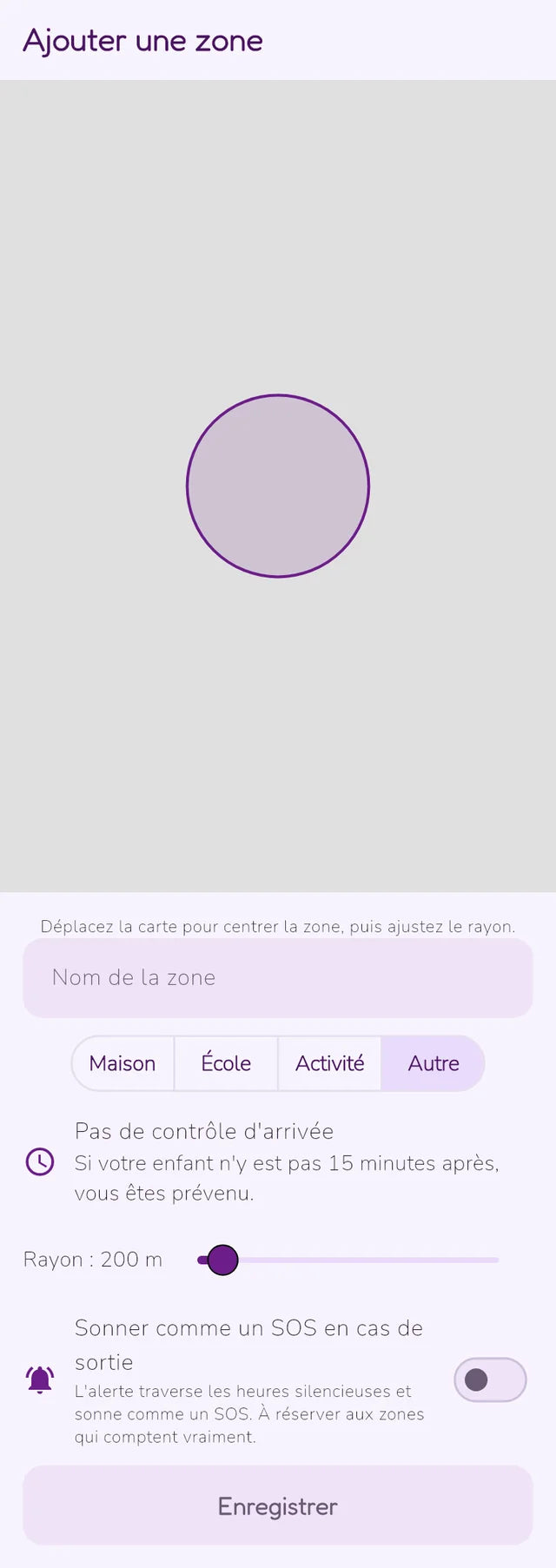
The zone editor. The map background has not loaded in this workshop screenshot. Entry and exit
You are notified when the child enters the zone and when they leave it. To avoid false alerts, a single isolated position does not trigger anything: it takes two consecutive positions on the same side. A position whose uncertainty circle overlaps the boundary does not count.
Expected arrival time
For a “school” zone, enter the time the child should be there and the relevant days. If they have not arrived, you receive a missed arrival alert. It is the setting that brings the most peace of mind, and the one most often forgotten.
Ring loudly
A zone can be marked to ring like an SOS, including during quiet hours. Keep this for what truly matters: an alert that shouts all the time eventually gets turned off.
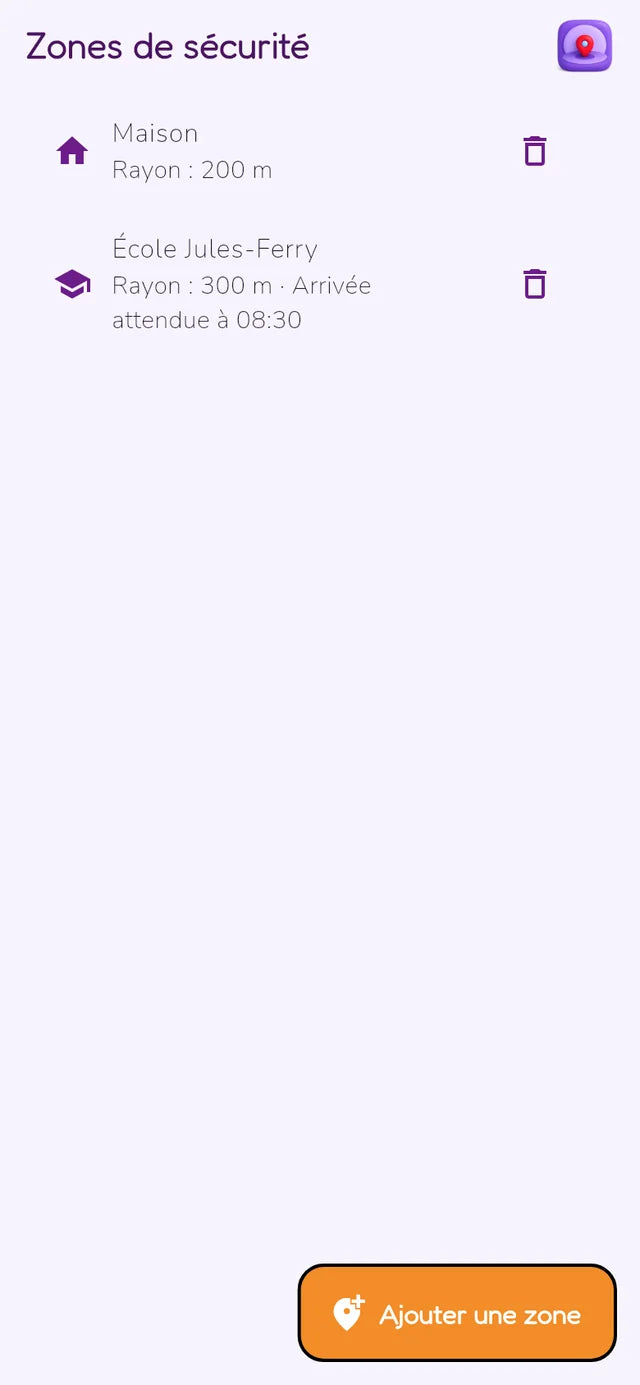
Two zones, including one with an arrival time.
History
Watch profile then History
Choose the day
The arrows under the title browse the 90 last days. Beyond that, locations are deleted from our servers.
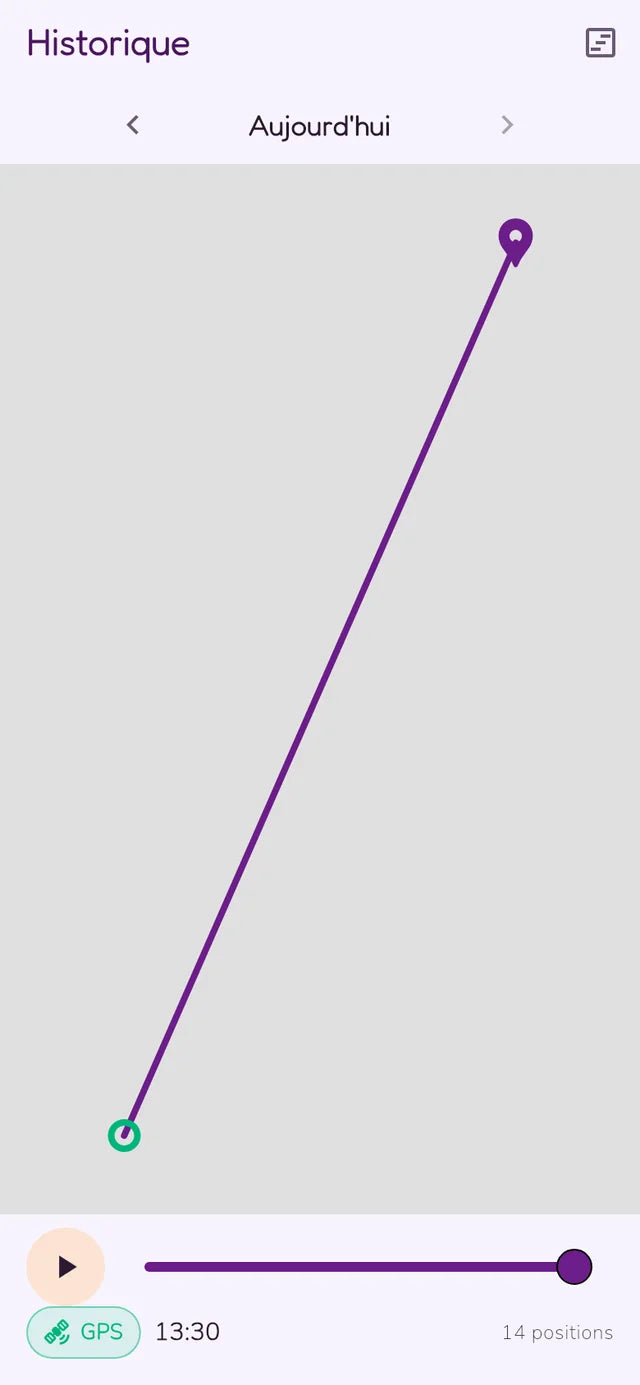
Today’s route, cleaned up for readability. Play the route
The play button replays the day, while the slider lets you move through it manually. The time and location quality shown follow the selected point.
Points are grouped before being plotted: a watch left on a desk sends back hundreds of overlapping positions, which become a single point. The raw number of positions remains displayed on the right.
Day view
The icon at the top right switches to a list: the places where the child stayed, with arrival time, departure time and duration. Zones you have created give their names to recognised places; the others remain “Place”.
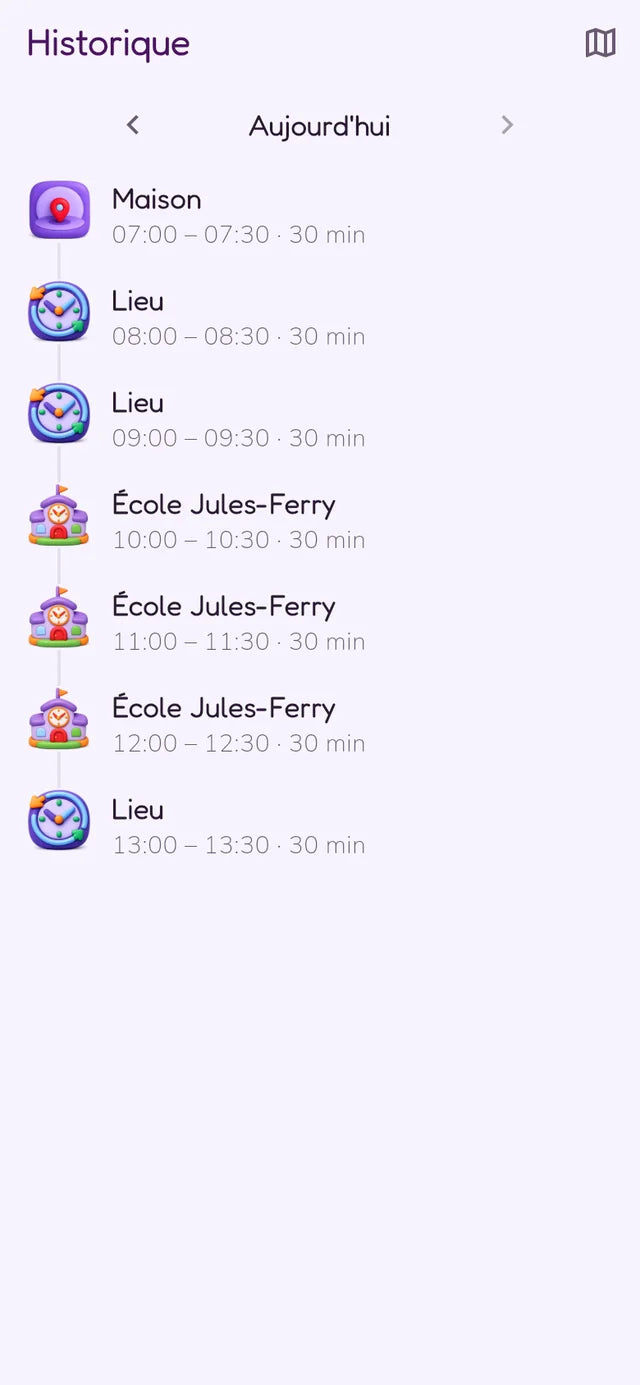
The day told through places and durations.
Phonebook and calls
Watch profile, then Phonebook


Fill in the phonebook
Up to 15 contacts. Each one uses a numbered slot, which is the order in which they appear on the watch. The name is limited to 10 characters: this limit is set by the watch.
Mark a contact as an SOS number so they are called automatically when your child presses the button. Three at most, called in order: SOS 1 first, and SOS 2 is the one named by the app in reminders for an unanswered SOS.
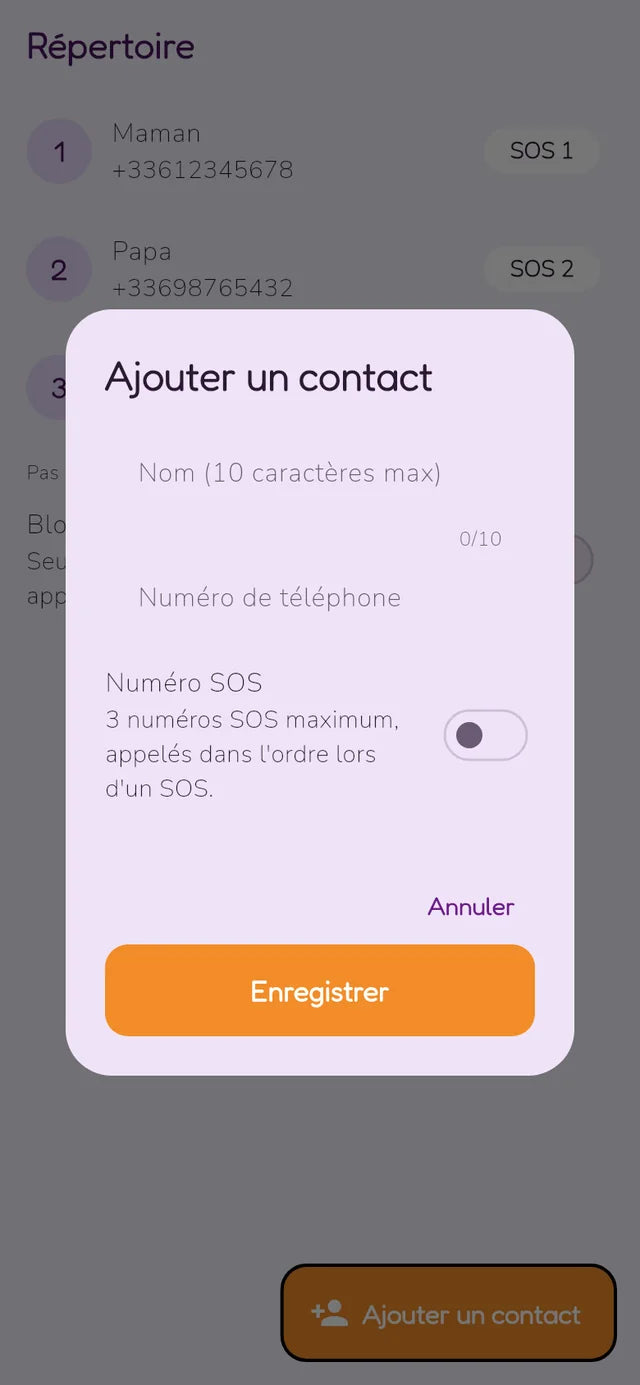
After each change, tap Send to watch. The line under the list shows whether the watch has confirmed receipt, and when.
Block unknown callers
In Watch settings, turn on blocking for calls from outside the phonebook. The Unknown calls rejected screen then lists the rejected numbers with their timestamps. This is not a full call log: the watch protocol does not report accepted calls or SMS messages.
Messages
Watch profile, then Messages
Write
Type your message and send it: it appears on the watch. Accents and emojis work too.
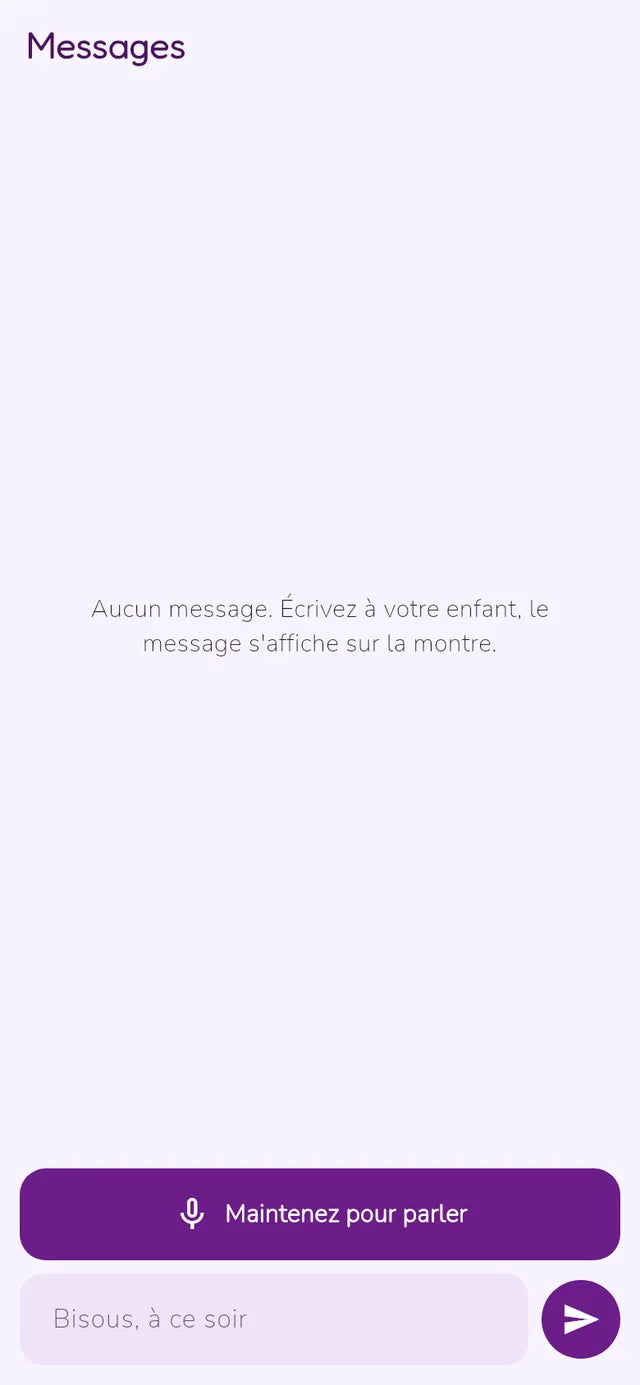
Text and voice, in the same conversation. Talk
Hold the Hold to talk button, speak, then release. The message is sent to the watch and the app waits for the delivery confirmation before showing “sent”. If it fails, the app tells you instead of making it look as if it went through.
Both parents
The conversation is shared by the family. Messages from the child arrive for everyone.
Voice messages are kept for 30 days, then deleted automatically.
Activity
Watch profile then Activity
The day
The ring shows today’s steps against the goal. Below it, you’ll see the distance measured on the GPS route and an estimate of calories based on steps.

Steps, week and achievements. Change the goal
The flag icon at the top right sets the daily goal. The bars for the last seven days turn green on the days it was reached.
Achievements
First goal, three days in a row, seven days in a row, thirty days, one hundred thousand steps, goal doubled. An achievement is earned once and is never lost.
Reward
From the watch profile, Send a reward adds flowers to the child’s watch. From 1 to 99 at a time.

Health profile
Watch profile, then Health profile
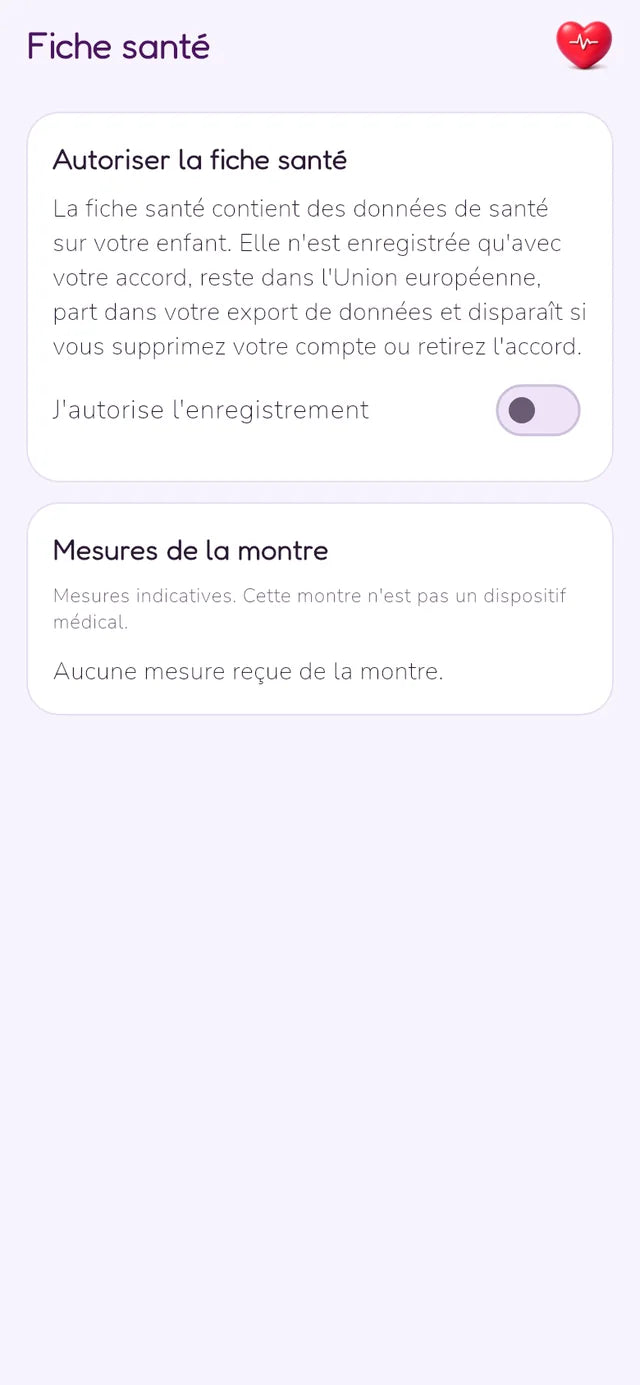
A child’s health data is only recorded if you explicitly allow it, using the switch at the top of the screen. It stays within the European Union, is included in your data export and is deleted if you withdraw consent or delete your account.
School schedule and calendar
Watch profile, then School schedule
This is the setting that locks the watch automatically at the right time, then opens it again automatically afterwards. Two types of time slot work side by side.
Read “Today on the watch”
The top card tells you exactly what the watch will do today: locked from one time to another, or unlocked all day. Underneath, you will see the sending status for the day.
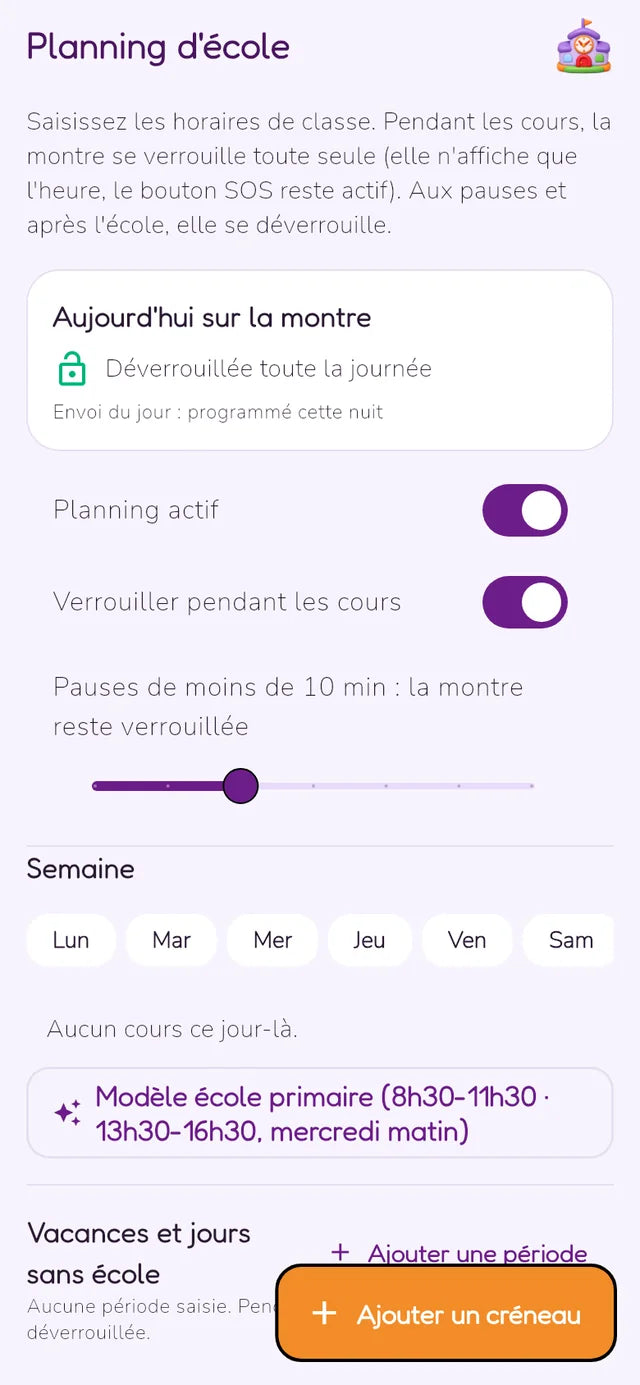
The schedule, day by day. Add a slot
The Add a slot button offers two types:
- School: a lesson, with its subject. Inactive during the holidays you enter, and if the “Lock during lessons” switch is off.
- Schedule: your own rule, with a custom label. Homework, bedtime, meals. It applies even during holidays and regardless of the school switch.
Choose the relevant days on the same screen: a slot is created for the whole week in one go.
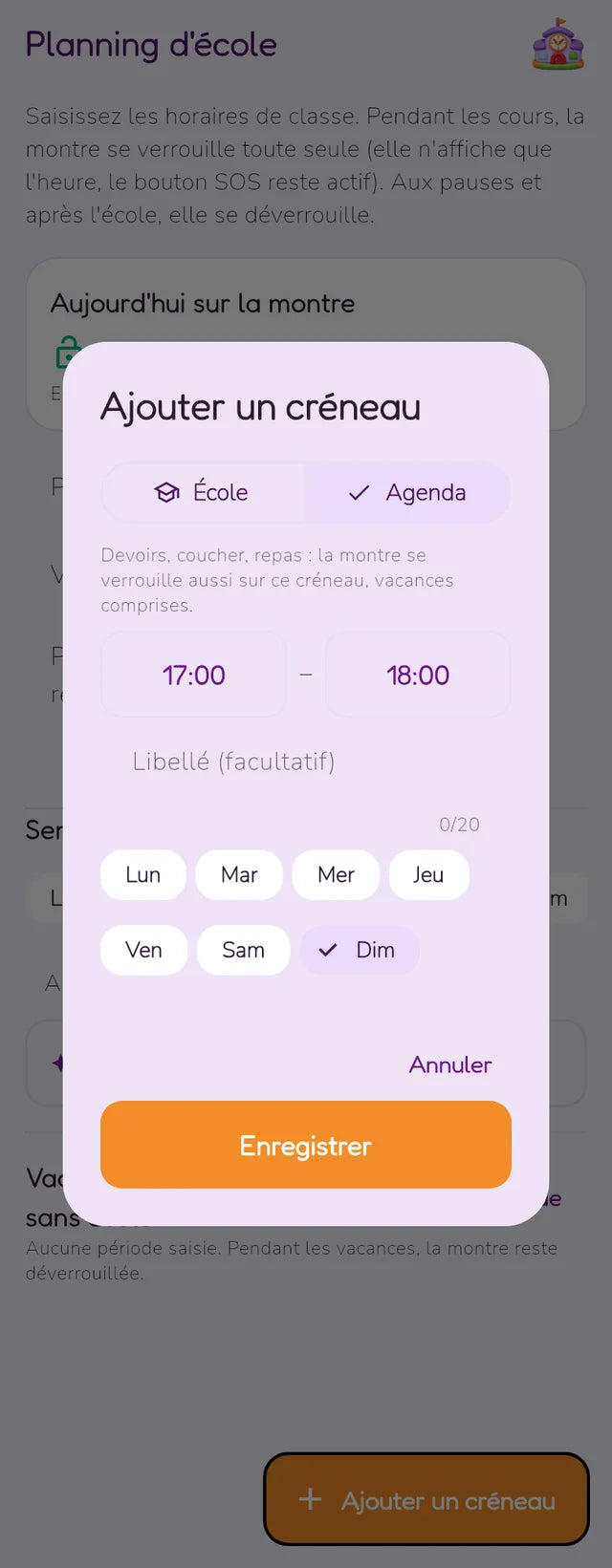
Agenda type: a free-text label and times that stay in place, even during holidays. Save time
Primary school template fills in a typical week in one tap. Copy to other days duplicates the displayed day.
Short breaks
The slider sets the length of break below which the watch will not unlock. Default 10 minutes: a 10-minute break between two lessons will not return the watch for five minutes.
Holidays
Enter the periods when there is no school, with their names. During these periods, lessons no longer lock anything. Your calendar time slots still continue.
School mode
Watch profile, then Class mode
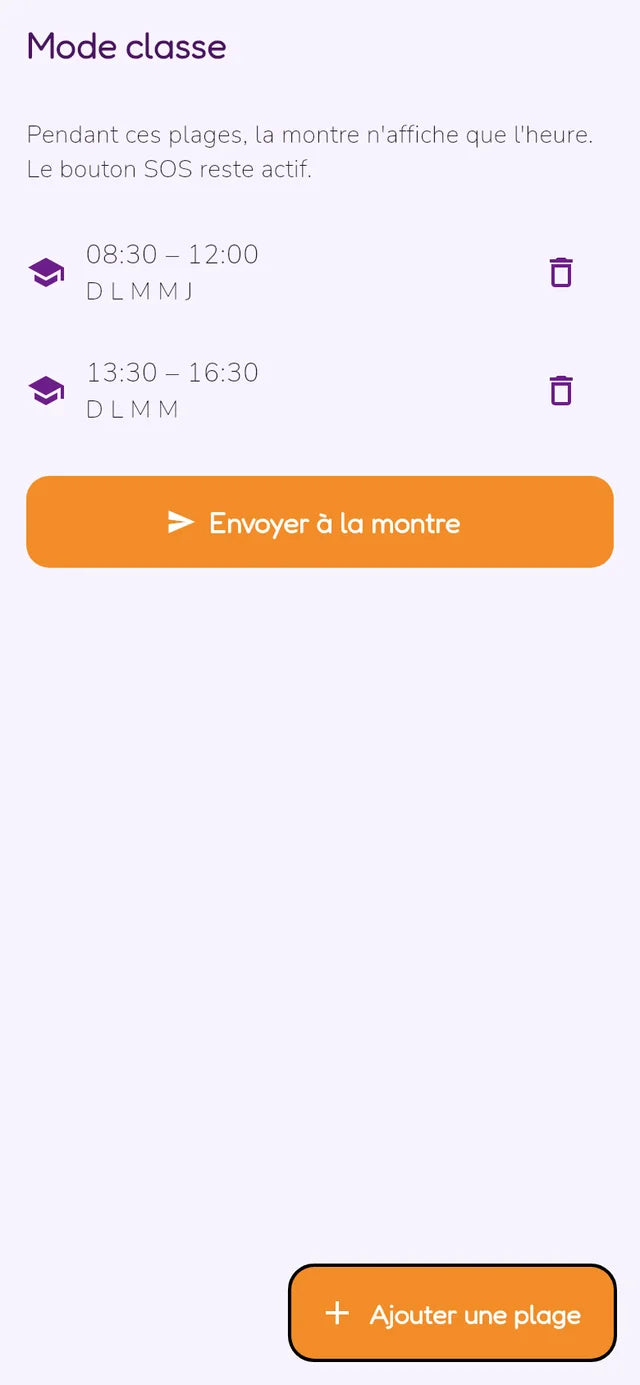
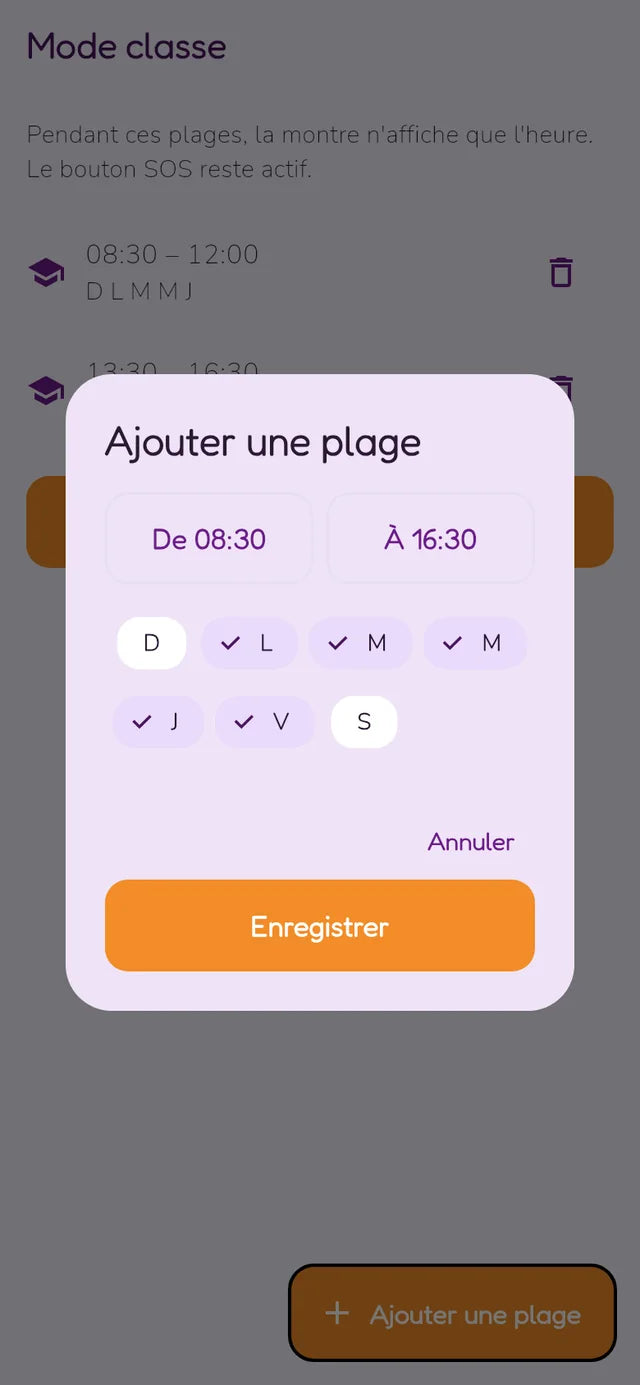
Class mode is the manual version of the schedule: you enter the time slots directly, without a school calendar or holidays. During a slot, the watch only shows the time, and the SOS button remains active.
If you use the school schedule, you do not need class mode: the schedule sends those same time slots, taking holidays and breaks into account.
Alarms
Watch profile, then Alarms
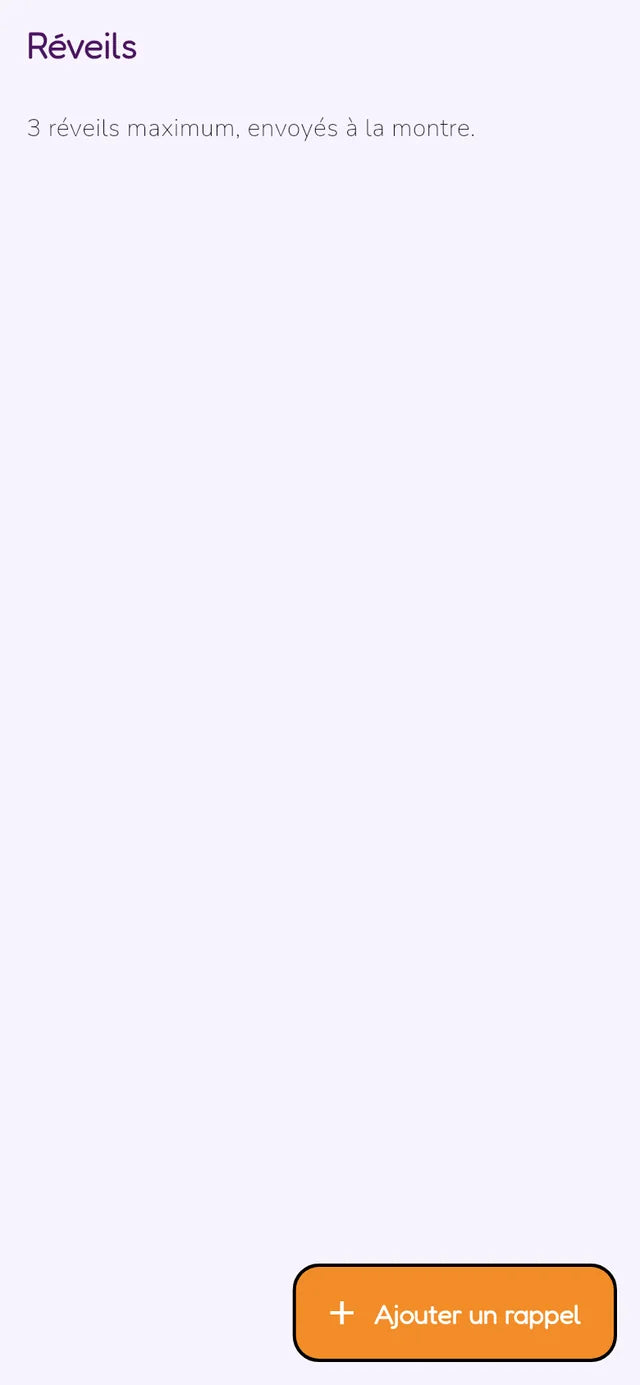

Three alarms, each with its time and repeat setting. They ring on the watch even without network coverage. Useful for medication, the end of break time or time to come home.
Watch profile
Settings icon on a watch’s map
Watch summary
Everything this watch can do, in one list. A feature not verified on this model does not appear at all.
At the top, the child’s avatar: this is the face that will appear on the map and in alerts.
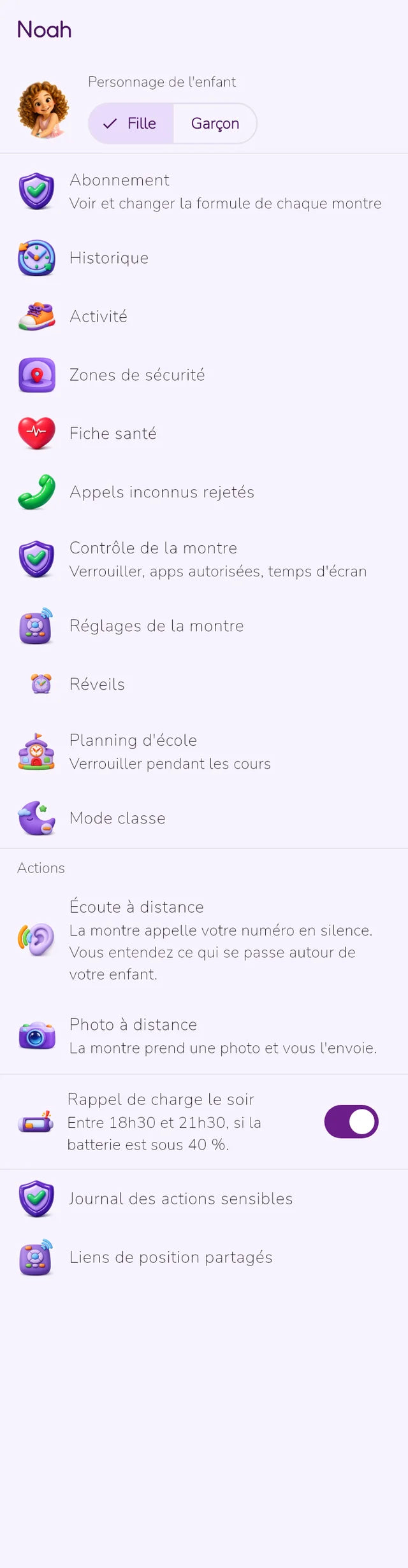
The full record for a B31 watch. Actions
- Ring the watch: to find it at home.
- Send a reward: from 1 to 99 flowers.
- Remote listening: the watch calls your number silently. A warning screen is required, and the action is recorded in the log visible to all parents.
- Remote photo: same principle, same log.
- Language and time zone: aligns the watch with your phone.
Charging reminder
On by default. Between 18:30 and 21:30, if the battery is below 40 %, you receive a reminder to plug in the watch ready for the next morning.
Sensitive zone
Restart, power off and factory reset. Each action requires explicit confirmation. A factory reset erases the watch: it will need to be linked again.
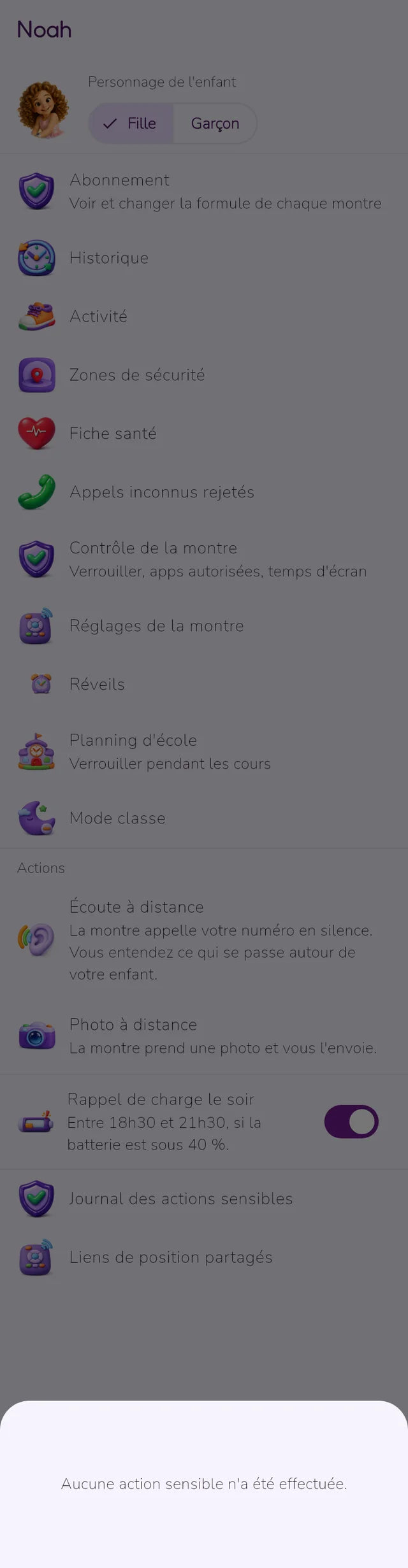
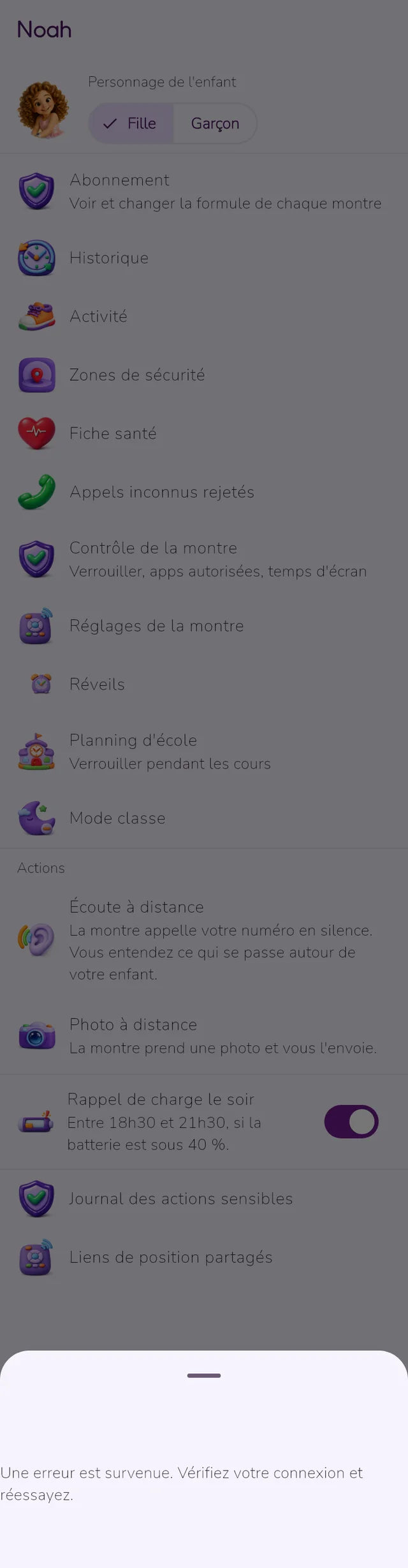
Log and sharing
Sensitive action log lists who triggered a listen-in, a photo or a shutdown, and when. Shared location links lists the temporary links you have created, and lets you revoke them.
Watch settings
Watch profile, then Watch settings
An honest principle
These watches cannot send their settings back. The app therefore shows the last setting sent and acknowledged by the watch, with its date — never an assumed status.
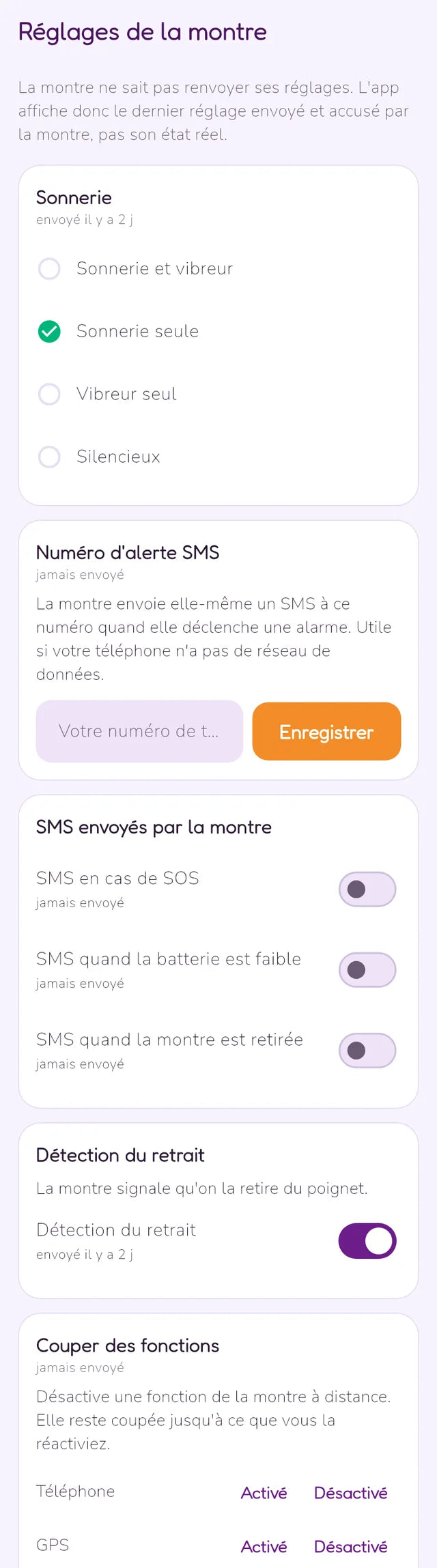
Each block shows when it was sent. Ringtone
Ringtone and vibration, ringtone only, vibration only, silent.
SMS alert number
The watch sends an SMS to this number itself when it triggers an alarm. Useful if your phone has no data connection. Then choose which alarms trigger an SMS: SOS, low battery, watch removed.
Removal detection
The watch indicates when it is taken off the wrist. The alert is grouped: a prolonged removal does not generate an alert every five minutes.
Turn off features
Phone, GPS, pedometer and other features can be turned off remotely, and stay off until you turn them back on.
App settings
Fourth tab
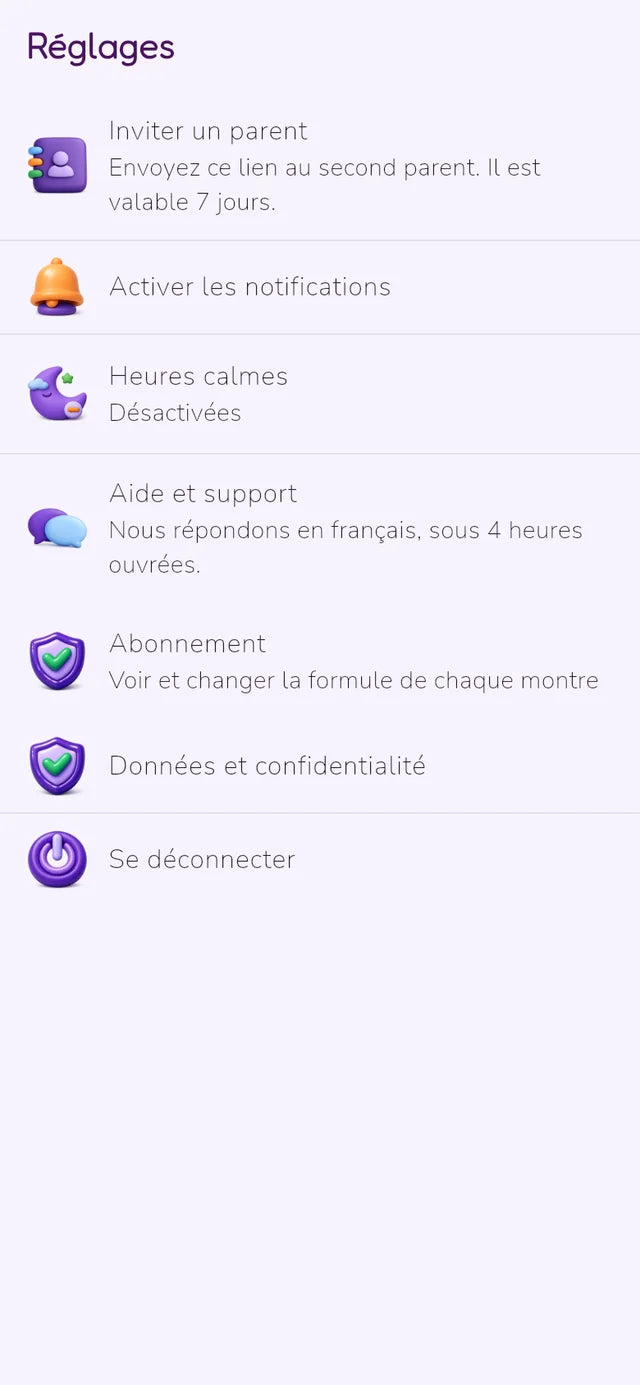
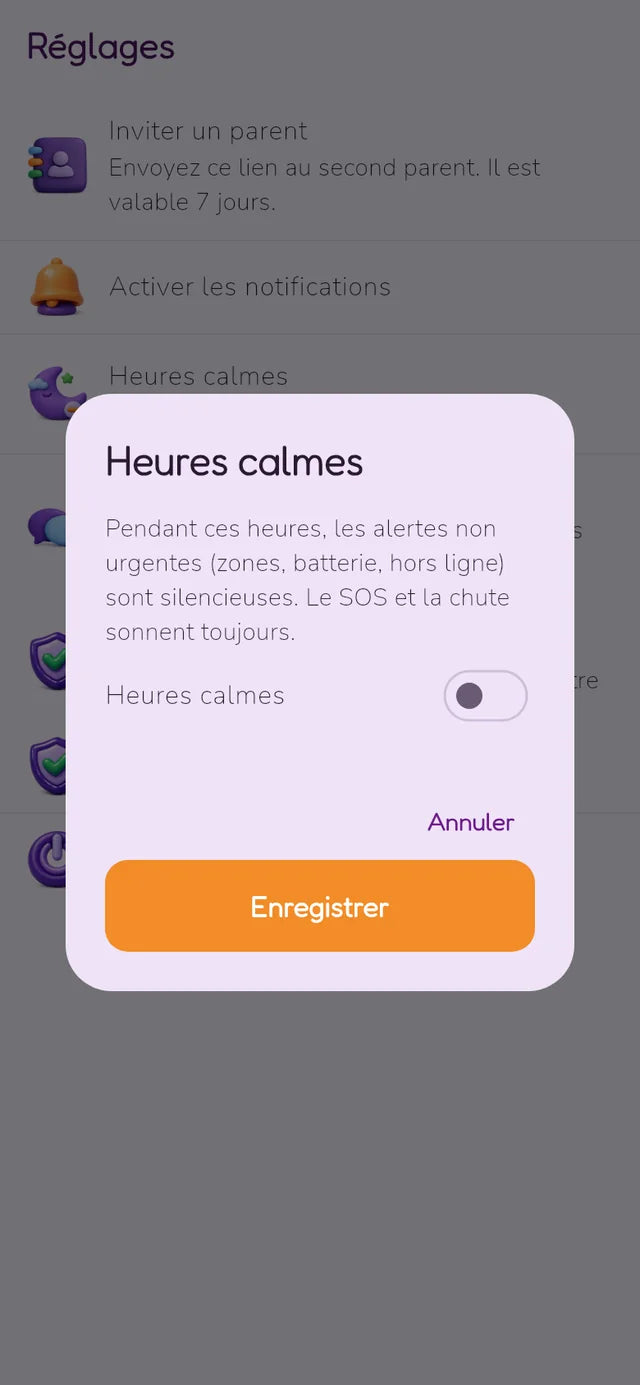
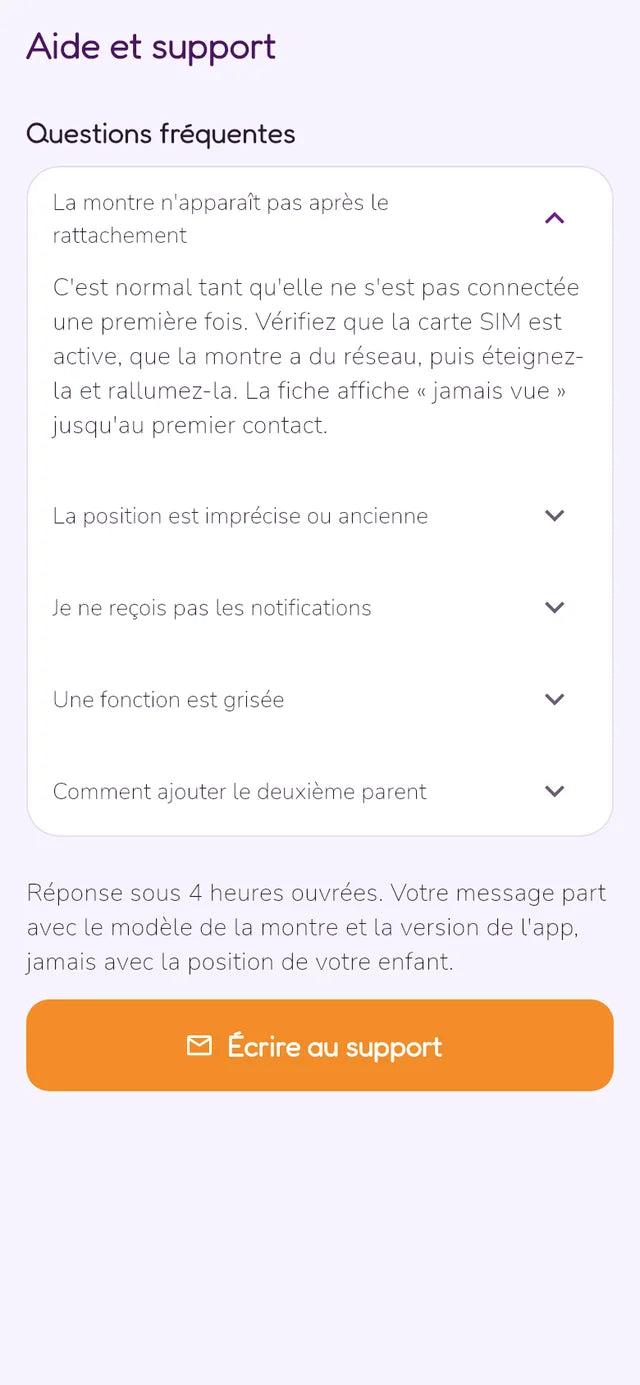
- Invite a parent: copies a link valid for 7 days.
- Turn on notifications: the same mechanism as the banner, available at any time.
- Quiet hours: the period when ordinary alerts do not ring. SOS always gets through.
- Help and support: five answers to the most common issues, followed by a pre-filled message with the watch model and app version. Never your child's location.
- Subscription and Data and privacy: see below.
Support reply within 4 working hours, in French.
Subscription
Settings or the watch profile
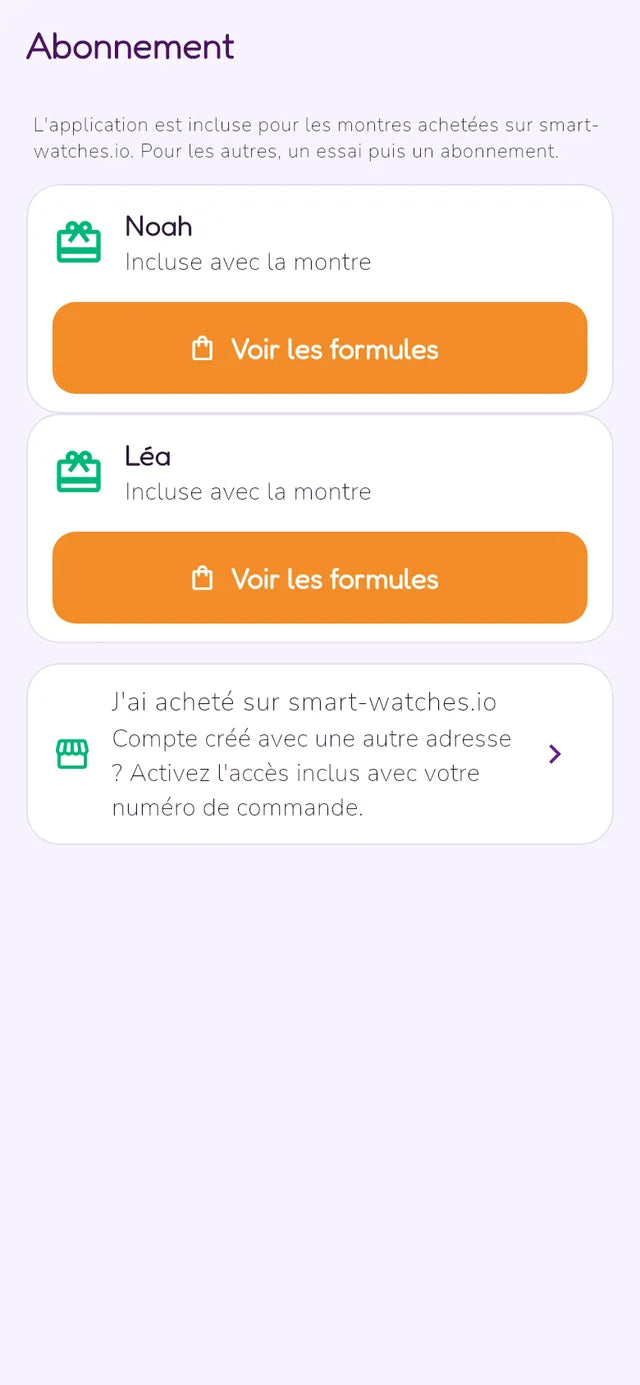
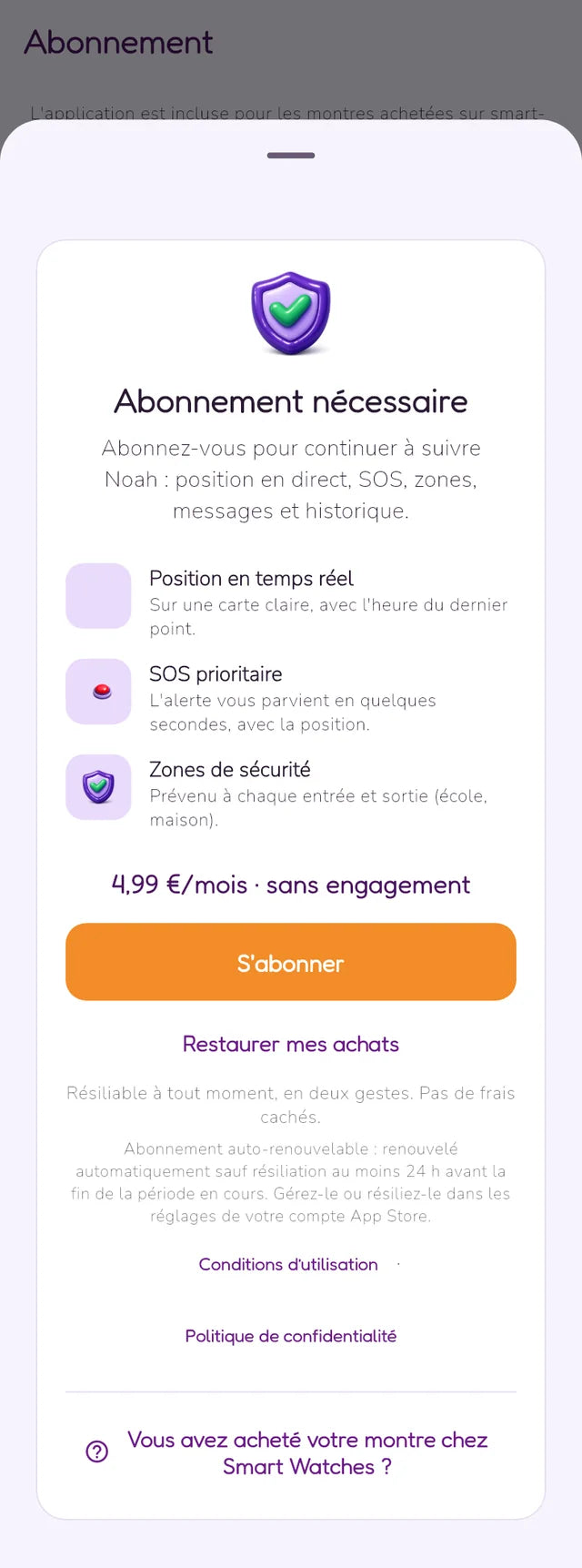
The app is included with watches bought on smart-watches.io. For a watch from another brand, there is a trial followed by a no-commitment subscription that can be cancelled in two screens.
The status is shown for each watch: active plan and end date, or no plan. If your account was created with a different email address from the one used for your order, use I bought on smart-watches.io and enter the order email address and order number.
Data and privacy
Settings, then Data and privacy
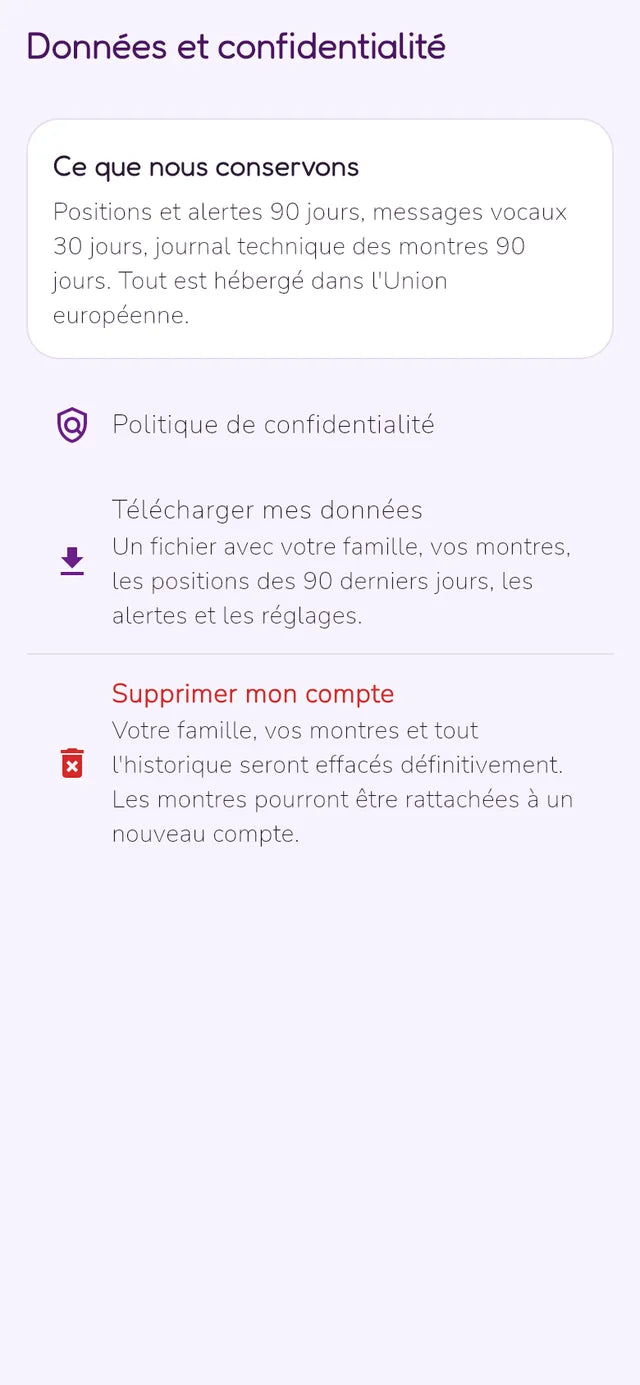

- Locations and alerts: 90 days.
- Voice messages: 30 days.
- Technical watch log: 90 days.
- Everything is hosted in the European Union.
Download my data creates a file containing your family, your watches, the locations from the last 90 days, alerts and settings.
Delete my account permanently removes the family, the watches and the entire history. The watches can then be linked to a new account again.
Usage and crash measurements are optional and requested during setup. They never include your child’s location, their first name or the watch identifier.
Part 3
Watch app
Installed on the child’s watch, it becomes the home screen. Large touch targets, little text, SOS always within reach. Screenshots taken on a 320-pixel screen.
First start-up
The IMEI number
On first launch, the app reads the IMEI automatically. If the watch cannot allow this, it will ask for it: enter the 15 digits printed under the watch.
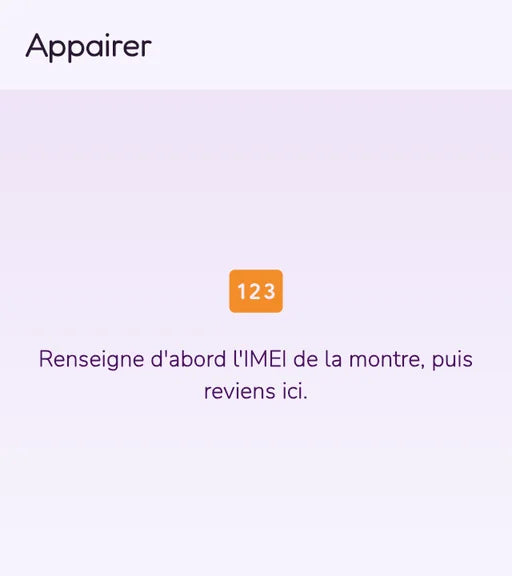
IMEI entry. The pairing QR code
On Ultra, a QR code appears: “Scan me with the parents' app”. Scan it from the Add a watch screen on your phone; if the watch first asks for its IMEI, enter it here. On other models, enter the 15 digits of the IMEI from your phone instead.

The pairing QR code. Allow location sharing
The watch asks for permission to send its location to its parents. Without this permission, the map will remain empty.
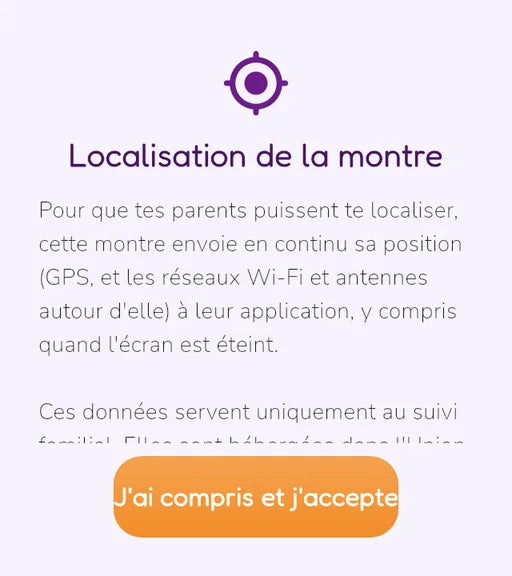
Location consent.

Home screen
What the child sees
A large clock, a status dot, the round SOS button in the centre and four round tiles: calls, messages, rewards and status.
The status dot says Connected when the watch is communicating with the server. Steps update live, without leaving the screen.
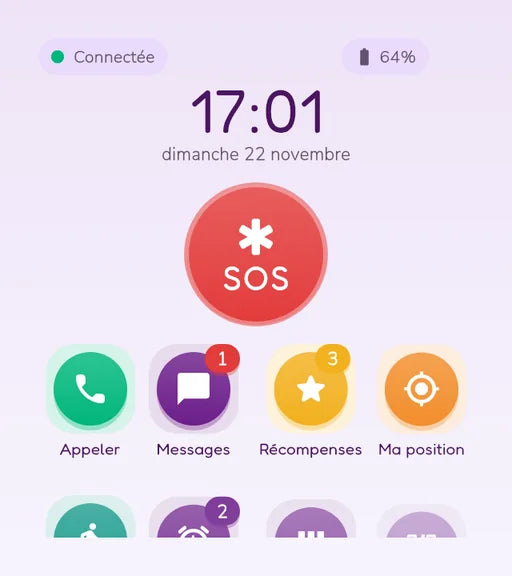
Home screen, battery at 64%. Banners
An orange banner appears when the battery is low, and another when an update is available. They never cover the SOS button.
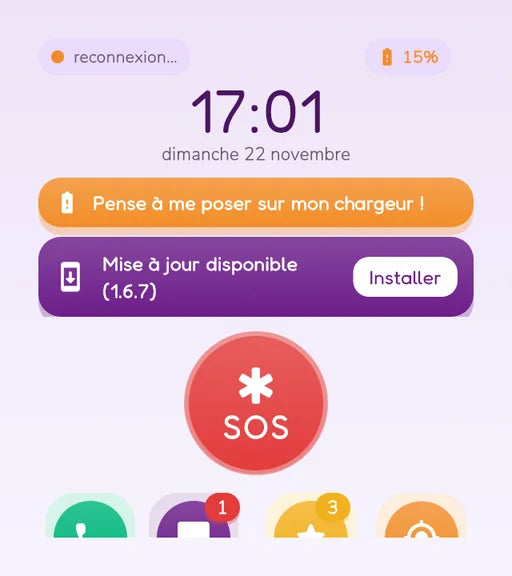
Low battery.
The SOS button
Your child holds the red button for three seconds. A short press does nothing, to avoid accidental alerts from a pocket.
When it is triggered, two things happen at the same time:
- an alert with the location to the server, which notifies the parents in under five seconds;
- a phone call to the first SOS number in the contacts.
Each new press notifies the parents again and calls the SOS number again. SOS also works when the watch is locked, in class mode, and during lessons.
Call

The child only sees the contacts you have sent. One tap is enough to call. If unknown-number blocking is enabled, a number that is not in the phonebook cannot reach them.
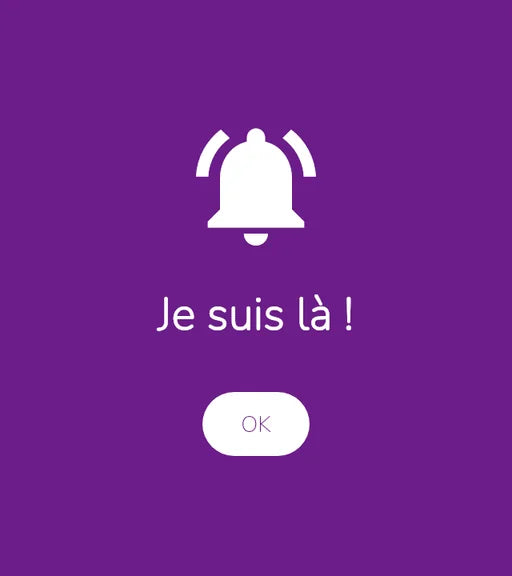
When you trigger Ring the watch from the parent app, the watch shows this screen and rings, even in silent mode.
Messages
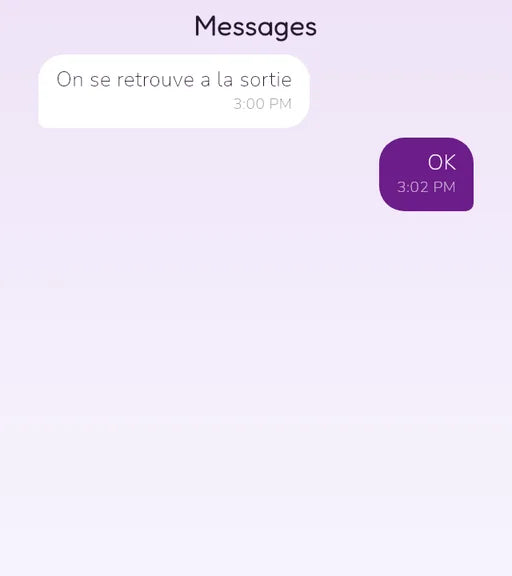
Your child reads your messages and replies: with a voice message, or with a ready-to-use quick reply. Unread messages appear as a badge on the home screen tile.
Activity and rewards
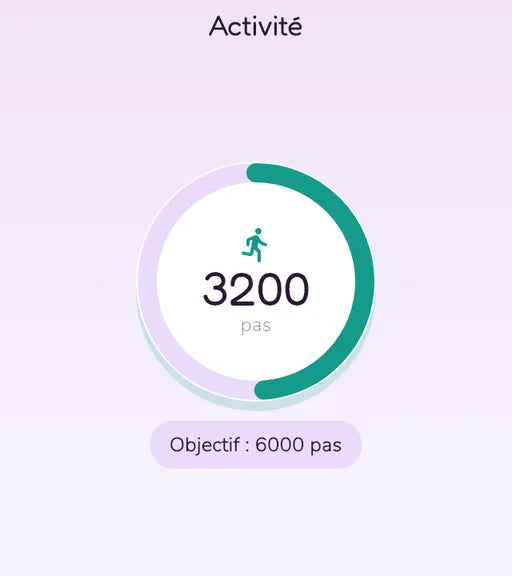
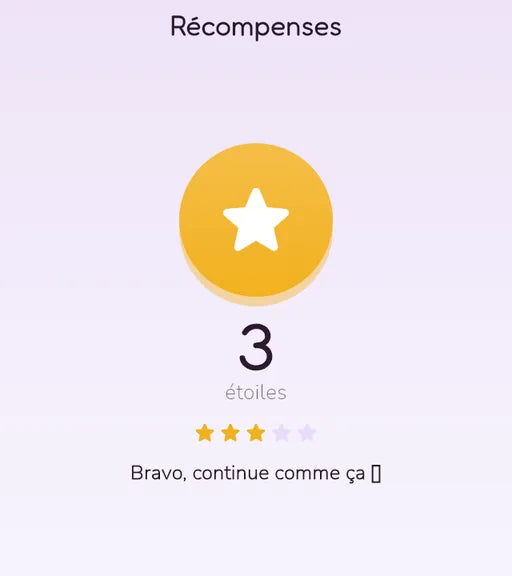
The step counter updates continuously while the screen is on. The flowers you send from the parent app appear here, with a little celebration when they arrive.
Alarms and ringtone

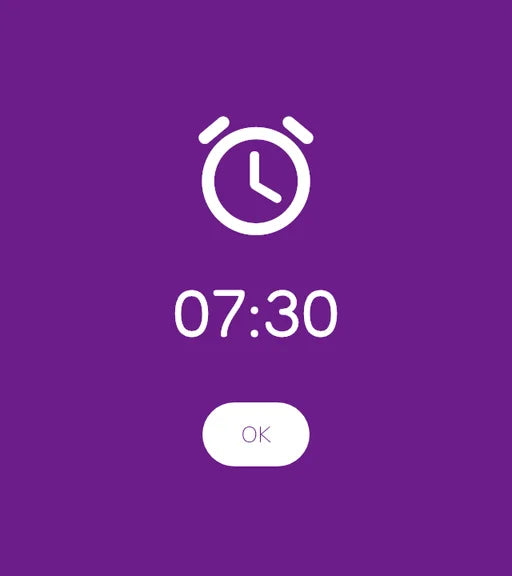
The alarms you have set appear here. They ring even without a network connection: the watch keeps them in its memory.
Apps
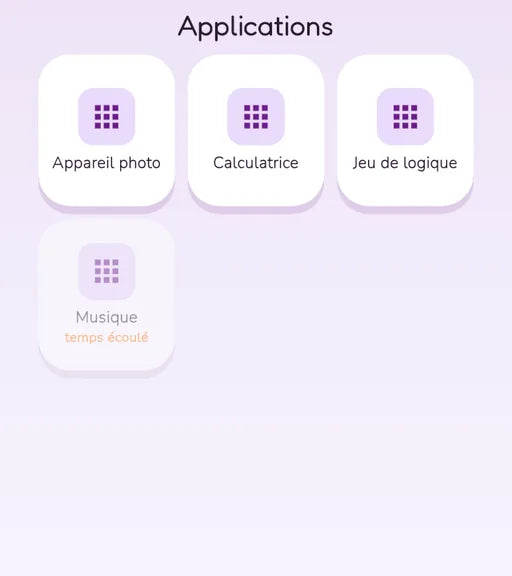
On an Android watch, the Apps tile on the status screen opens the list of apps approved by the parent. The child launches them from there. Any app that has not been approved returns immediately to the Smart Watches home screen, and the attempt is reported to the parents.
The Play Store is disabled by default.
Updates
When a new version is released, a banner appears on the watch home screen. Tap it to start the download and installation; the watch will guide you to the Android permission if it is requested.
Part 4
Child mode
The advanced side of the product. It turns an ordinary Android watch into a child’s watch: the app becomes the home screen, the child cannot leave it, and the parent controls everything from their phone.
What child mode does
- The Smart Watches app becomes the watch’s home screen.
- Apps that are not allowed close immediately and return to the home screen.
- Android settings are out of reach for the child.
- Any app installed by the child stays blocked until you approve it, and you’ll be notified.
- You can lock the watch remotely, or on a schedule.
- If the child undoes a setting, you receive an alert and the watch shows a blocking screen.
The five steps
On the watch: Status tile, then Child mode
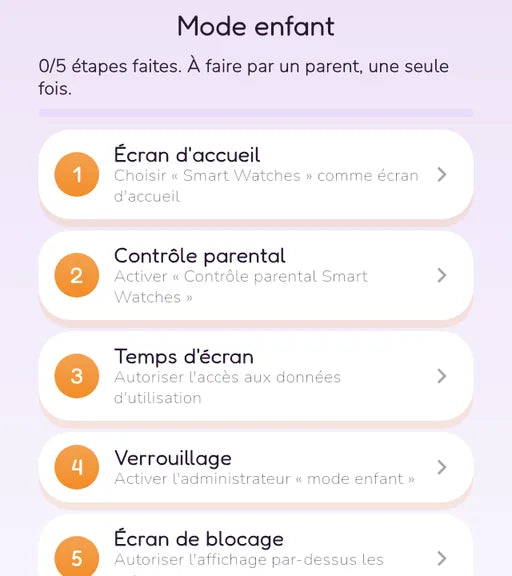
Setup is done once, on the watch, by the parent. Each step opens the corresponding Android setting; all you need to do is turn on the switch and go back.

Home screen
Choose “Smart Watches” as the watch’s home screen, and tick “always”. This is what prevents the child from returning to the original launcher.
Parental controls
Enable the “Smart Watches Parental controls” service. This is what closes apps that are not allowed. On watches whose settings do not offer this menu, the app takes over through another mechanism and the step confirms itself automatically.
Screen time
Allow access to usage data. This is what makes it possible to count the time spent in each app and apply your limits.
Lock
Enable the “child mode” administrator. This is what allows remote locking and screen switch-off.
Block screen
Allow display over other apps. This is what makes it possible to show the “Watch locked” screen.
When all five are green, the watch shows “Active: parents control the watch from their app” and the status appears in your app straight away.
Parent code
Set it up
From your phone, Watch control, then Set code. A 4- to 6-digit code that your child does not know.
Without a code, a teenager can turn off child mode from the watch. With a code, they can no longer undo anything.
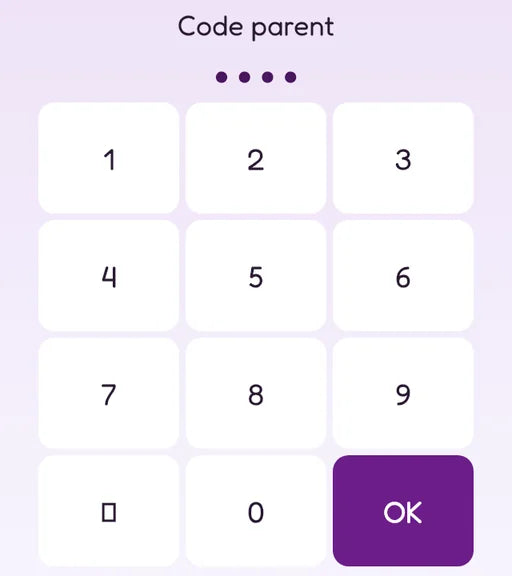
The parent code keypad. Use it
On the watch, the code is required to open Android settings, to leave the lock screen and to change the child mode configuration. Five wrong attempts block entry for a while.
The gateway to settings
After entering the code, you have 3 minutes to move around the Android settings, even if the watch is locked. From the alert screen, it is 10 minutes, giving you time to put a step back in place.
Setup lock
Once the five steps are complete and the code has been set, turn on Setup lock from the parent app. This is the safeguard that makes the installation irreversible for the child.
- If a step disappears, the watch immediately shows a blocking alert screen.
- You receive a notification naming the step that was skipped.
- Only the parent code can exit this screen.
The switch only becomes active once the parent code has been set: without a code, the lock would have no value.
Lock screens
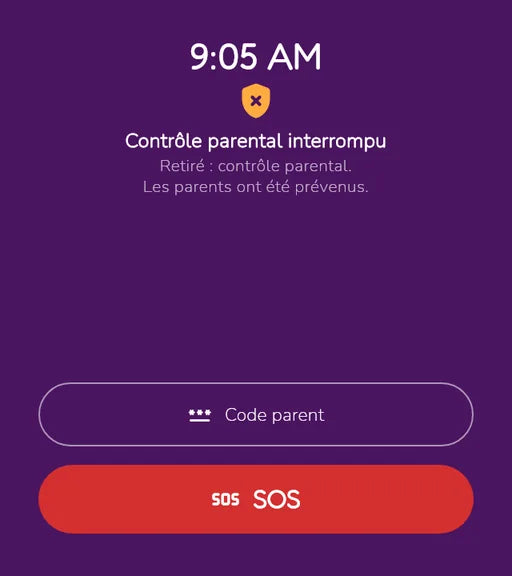
Watch locked
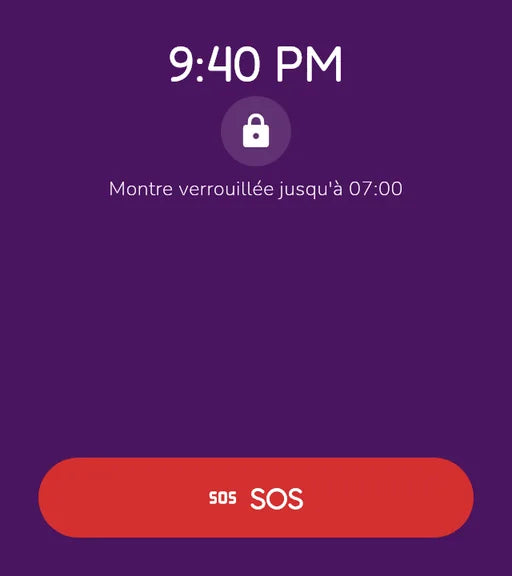
Triggered by you remotely, or by the locking hours. Your child only sees a “Watch locked” screen with the end time. SOS remains available.
School mode
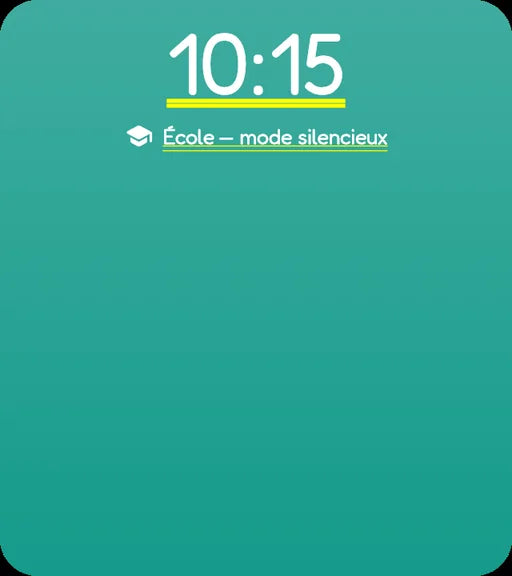
During a lesson or a calendar slot, the watch shows only the time. Nothing else can be accessed, except SOS. It unlocks automatically at the end of the slot.
Alert screen
Shown when the setup lock is enabled and a step has disappeared. It names the missing step and leaves only two options: SOS, or the parent code.
Control from the parent app
Watch profile, then Watch control
Status at the top
The first card tells you whether child mode is active on the watch, and which steps are missing. This is the real status reported by the watch, not a guess.

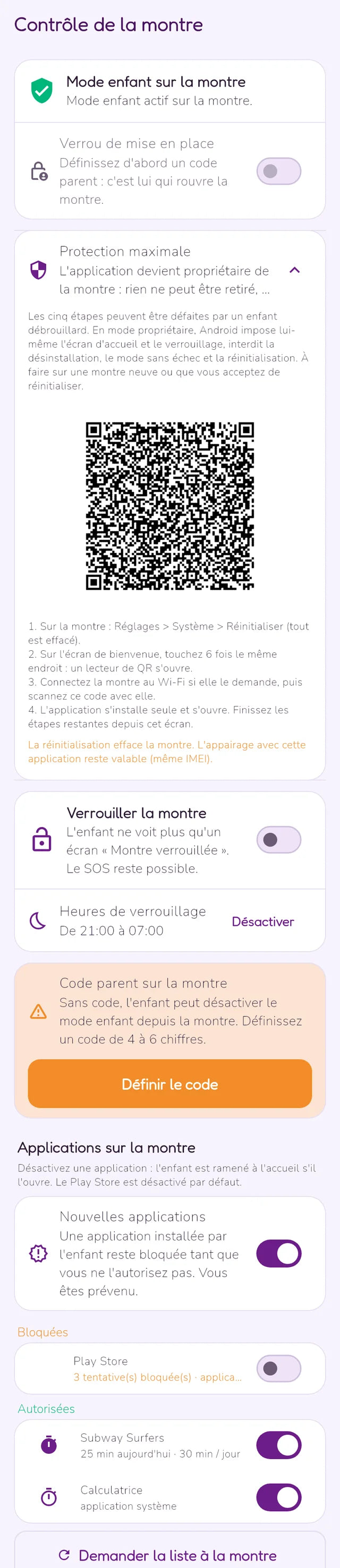
All child mode settings, from your phone. Lock the watch
The switch locks the watch immediately. Locking hours sets a daily time range, for example from 21:00 to 07:00.
New apps
Left active, it blocks any app installed by your child until you approve it, and alerts you.
Apps
Two lists: blocked and allowed. The switch moves an app from one to the other. The timer icon sets a daily time limit, and the row shows the time already used today.
Under a blocked app, the number of attempts today tells you what your child has tried to open.
Request the list
The bottom button asks the watch for the up-to-date list of its apps. Useful after installing a game.

Maximum protection
This is the strongest level. The app becomes the owner of the watch: it can no longer be uninstalled, the home screen can no longer be changed, and factory reset and safe mode are blocked.
This setup requires a new or reset watch: Android only allows this level before the first account is created. The parent app then displays a QR code to scan during the watch’s initial setup assistant.
Part 5
Reference
The exact figures, handy when you need them.
All alerts
| Alert | Trigger | Grouping | Quiet hours |
|---|---|---|---|
| SOS | The child holds the button for 3 seconds | 30 min | Always goes through |
| Fall | Detected by the watch | 30 min | Always goes through |
| Left safe zone | Two consecutive positions outside the zone | — | Silent, except in a “ring loudly” zone |
| Zone entry | Two consecutive positions in the zone | — | Silent |
| Missed arrival | Child absent from the zone at the expected time | — | Silent |
| Watch removal | The watch leaves the wrist | 30 min | Silent |
| Low battery | Threshold reached on the watch | 60 min | Silent |
| Watch offline | No signal for 30 minutes | — | Silent |
| Charging reminder | Battery below 40% between 18:30 and 21:30 | 1 per evening | Silent |
| New app | An app is installed on the watch | 1 per app | Silent |
| Child mode changed | A step has disappeared, lock armed | When changed | Silent |
| Abnormal heart rate | Measurement outside the range, if the model supports it | 15 min | Silent |
Grouping: during this period, an identical alarm that has not been dealt with does not create a new alert. It is added to the same one, and you are notified again at most every 20 seconds for an SOS, every 10 minutes for a removal.
Limits and timings
| Item | Value |
|---|---|
| Contacts in the address book | 15 |
| Contact name | 10 characters |
| SOS numbers | 3, called in order |
| Class mode periods per day | 4 |
| Alarms | 3 |
| Safety zones | 3 per watch |
| Rewards sent at once | 1 à 99 |
| Retention of locations and alerts | 90 days |
| Retention of voice messages | 30 days |
| SOS notification, end to end | less than 5 s |
| Reminders for an unhandled SOS | 2, 4, 7 and 12 min |
| Watch considered offline | 30 min with no signal |
| Validity of an invitation link | 7 days |
| Parent code | 4 to 6 digits, 5 attempts |
| Settings access after the code | 3 min, or 10 min from the alert screen |
| Sending the schedule to the watch | Every night, for the next day |
Troubleshooting
The watch does not appear after linking
It has never connected to the server. In order: check that the SIM card is inserted and activated, that the data plan is working, and that roaming is enabled if the watch is abroad. Restart the watch. The app’s diagnostics screen goes through these points.
I am not receiving any notifications
Open the My watches tab: if the “SOS alerts will not ring on this phone” banner is there, your phone is not registered. Tap Activate.
On iPhone, the app must have been installed on the Home Screen and opened from its icon. In a Safari tab, Apple sends nothing.
Also check that the other parent has done the same on their phone.
The notification arrives but without sound
Check the phone’s silent switch and Focus modes too. On iPhone, in Settings, Notifications, Smart Watches, the Sounds option must be enabled.
A web app cannot force an iPhone to ring when it is in silent mode. That is why the watch automatically calls your number: that call will always ring.
The location is inaccurate or out of date
Indoors, the watch cannot see the satellites. The position shown is then calculated using Wi-Fi or a mobile antenna, and the radius shown indicates the real uncertainty. This is normal.
Tap the refresh button on the map to request a fresh location. If the watch is offline, the last known location remains displayed with its age.
Your child exits the app on the watch
Child mode is not complete. On the watch, open the Status tile, then Child mode: all five steps must be green, especially the first one (Home Screen, with “always”).
Next, set a parent code and turn on the wear lock from the parent app, otherwise your child can undo everything.
Android settings close immediately
That is child mode doing its job. Use the parent code: it opens a 3 minutes window during which settings remain accessible, even when the watch is locked. From the alert screen, the window is 10 minutes.
The Play Store offers an older version than the watch
This is expected. New versions go through our direct channel first, then Google’s review. Update from the banner shown on the watch home screen.
A feature does not appear in the app
It has not yet been verified on your watch model. We never show a button that would not work: a feature that has not been proven on the hardware is absent, not greyed out. Write to us from Help and support, specifying your model.
I bought from smart-watches.io but the app asks for a subscription
Your account was created with an address other than the one used for the order. Tap Link my order — from the linking screen, or in Subscription with I bought on smart-watches.io — and enter the order e-mail address and order number. The included access is activated immediately, and your watches can then be linked without a code.